Actions on Posts and Users
This page introduces the main actions you can take on other users’ posts and on users. They are all available while logged in.
If you are not logged in, create an account from Sign up.
About action notifications For Nice Route / Nice Gadget, saving content, copying geographic information, and following, the other person is not notified of who did it. Posters are periodically notified only of how many they have received in total. Feel free to tap them.
Nice Route / Nice Gadget
A feature for telling a poster “this was a great article” or “this was helpful.”
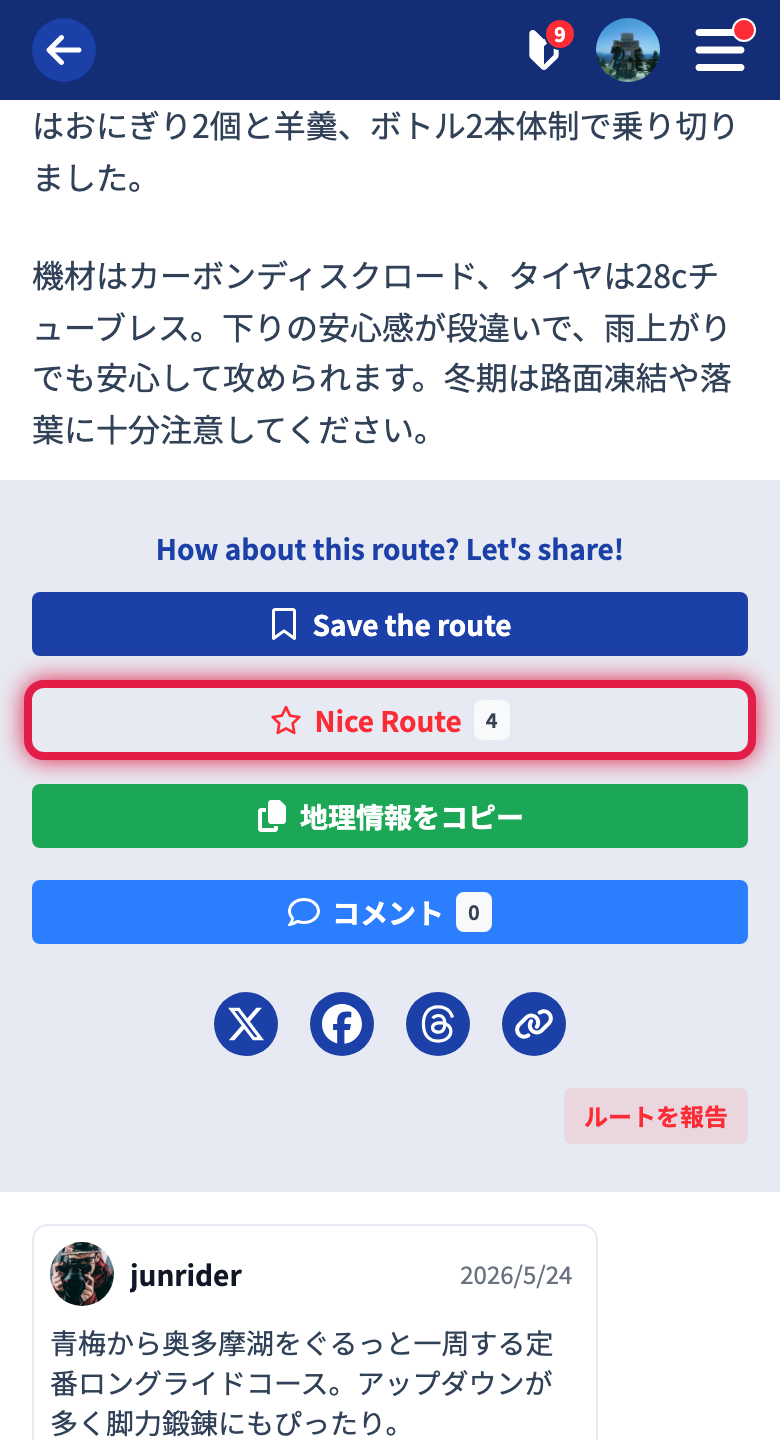
Tap the button on the detail page to send it. You can also tap it directly from a post’s card. It is called Nice Route for touring posts and quick posts, and Nice Gadget for gadget info.
The number sent so far is shown next to the button. For posts you have already sent one to, the icon is shown filled. Tap it again to undo.
Saving Content
If you save a post you want to read again later, you can review them all together from Saved items on My Page. You can save touring posts, quick posts, and gadget info all with the same mechanism.
Tapping the save button on the detail page opens the screen for choosing a save category.
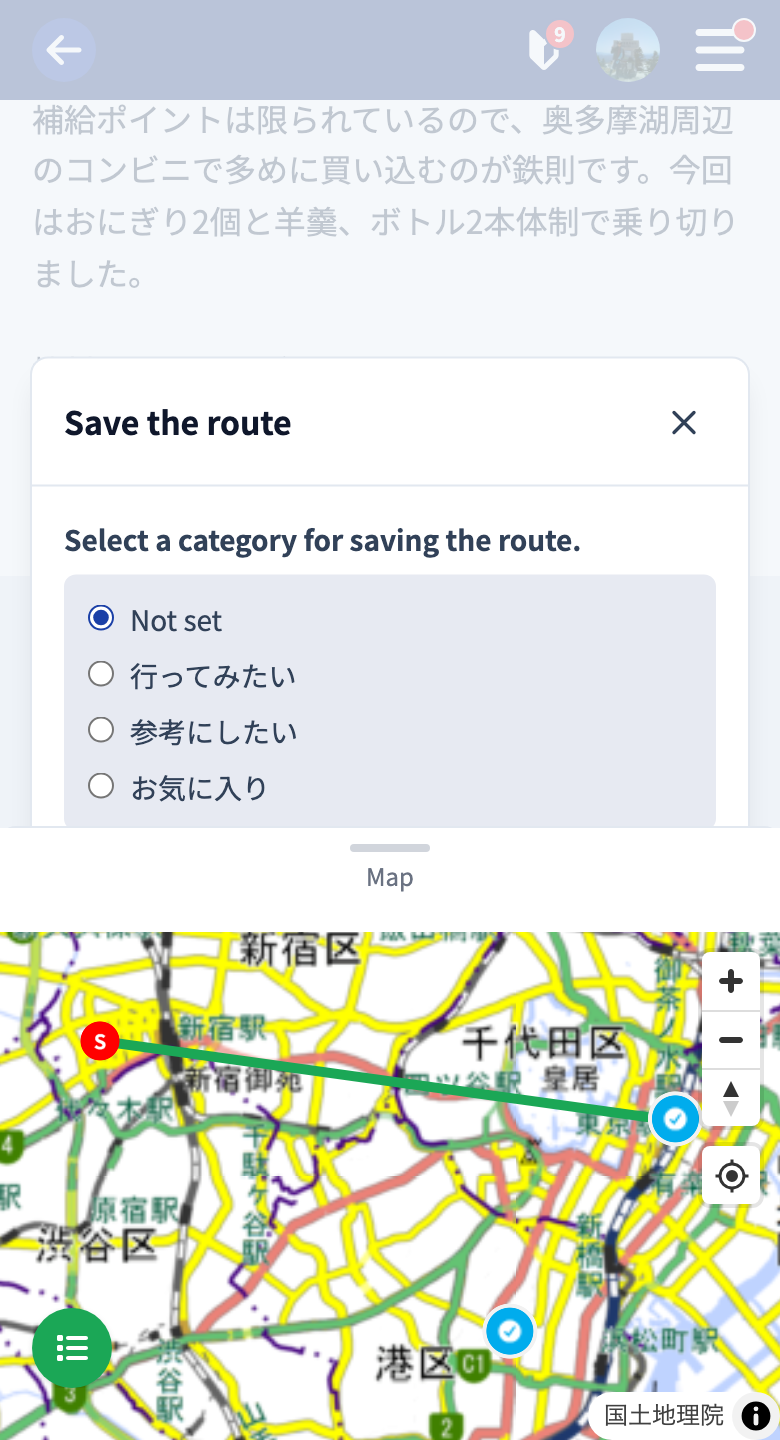
Sorting with Categories
When saving, you can choose a category to sort items. You can freely create categories such as “Want to visit” or “For reference” to match how you use them.
- If you have no category, create a new one with “Create a new category.”
- If you have existing categories, choose one with “Select a category to save to,” then tap “Save.”
- If it is already saved, “Change the category to save to” or “Unsave” is shown.
Reviewing Saved Posts
Open Saved items on My Page to choose and open posts you have saved.
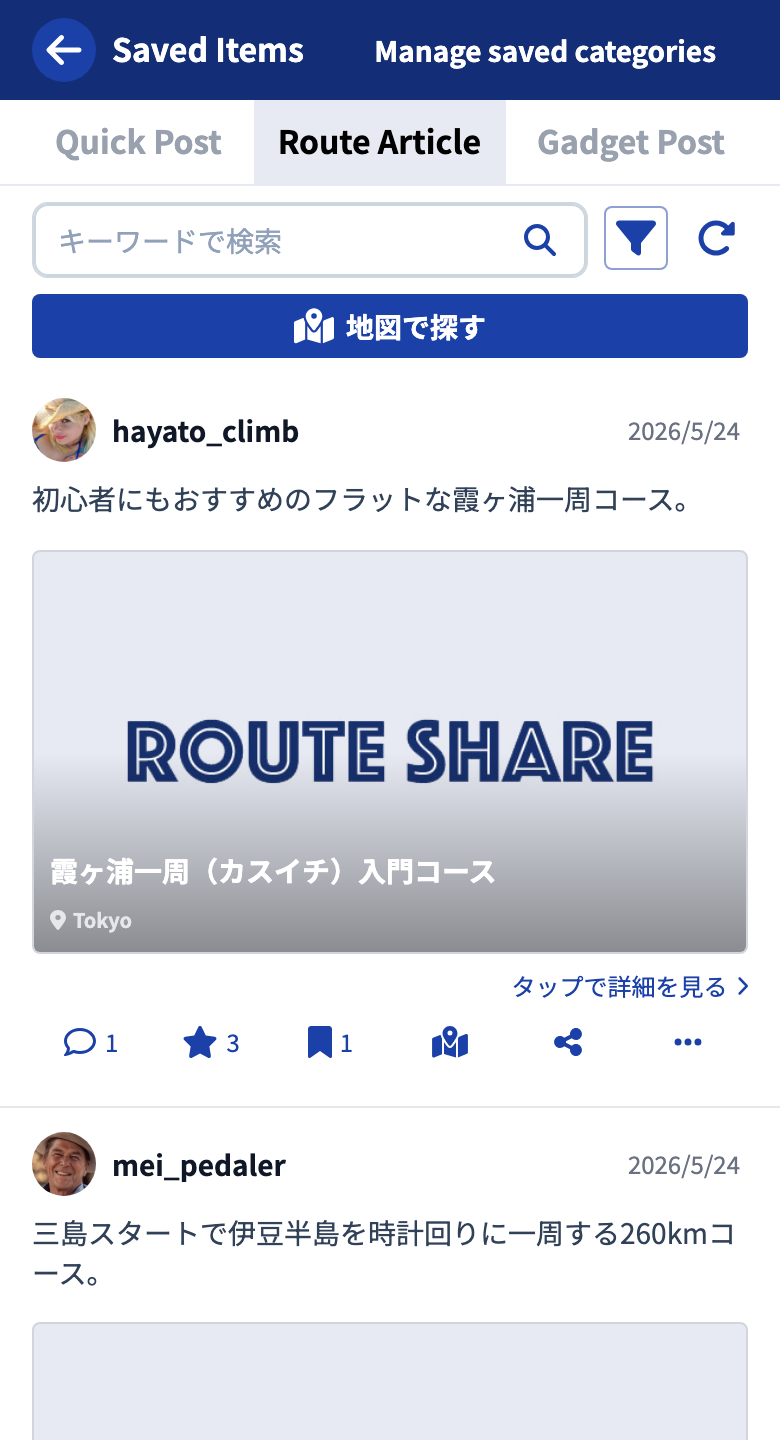
- You can narrow down by category or keyword, so they stay easy to find as they grow.
- When you want to find saved posts on a map, use Find saved items on the map.
Copying Geographic Information
You can copy the map information (spots, lines, shapes, and so on) of another user’s touring post into your own new touring post. It’s handy when you want to travel the same place, or create your own article for reference.
Tap “Copy geographic information” on the detail page to start.
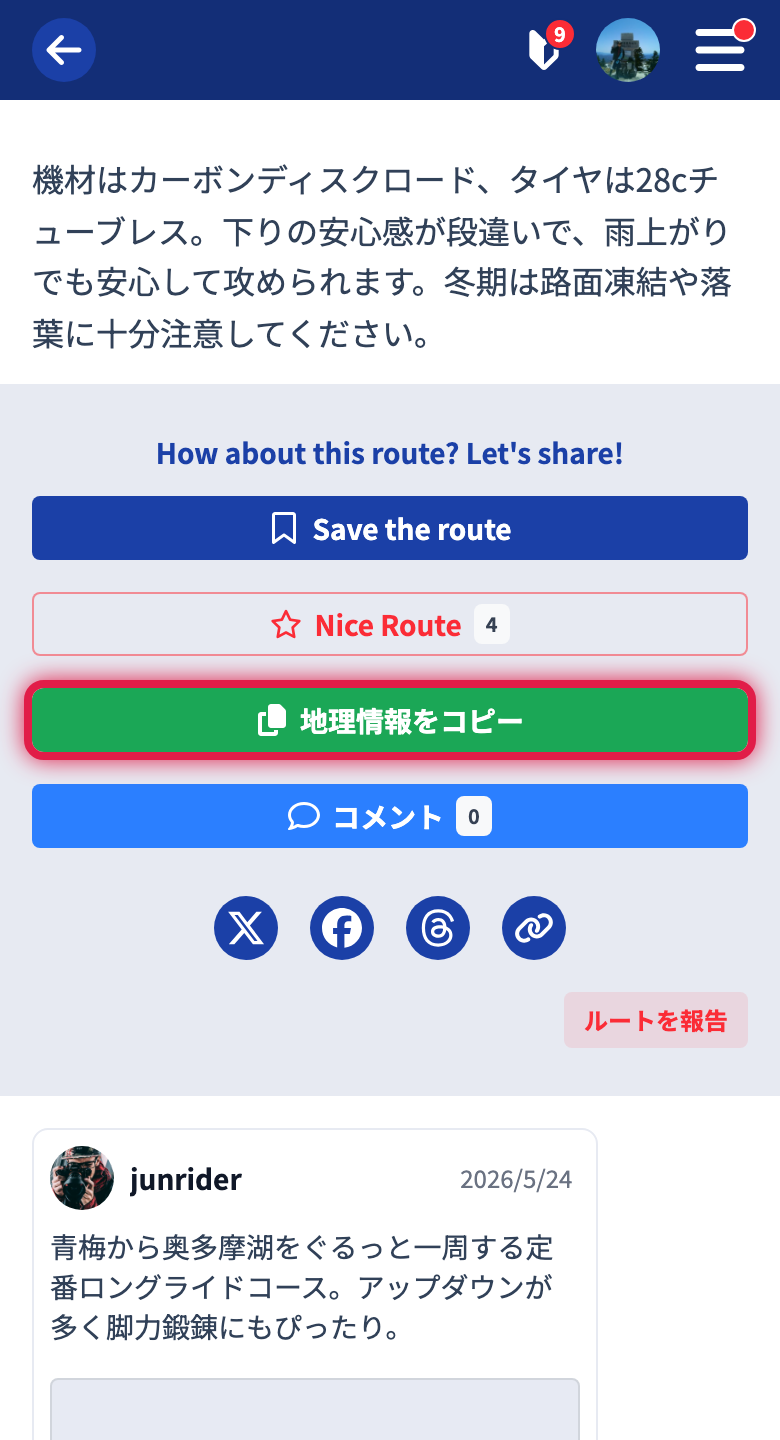
- Specify whether to copy all map information, or to copy by layer or by object.
- Enter a title for the new article to start.
- The copied article is saved as a draft, so edit and publish it from Created items or Drafts on My Page.
Only the map information is copied. The article’s body, photos, and tags are not copied.
Even within the map information, some things carry over and some do not.
- The names and descriptions of spots and lines carry over.
- Images attached to objects do not carry over.
- Recording lines are converted to ordinary lines, and recording information (such as dates and times) does not carry over.
Following a User
When you follow a user you like, that person’s new posts will appear in your timeline.
Tap “Follow” on the user’s profile to follow, and tap again to unfollow.
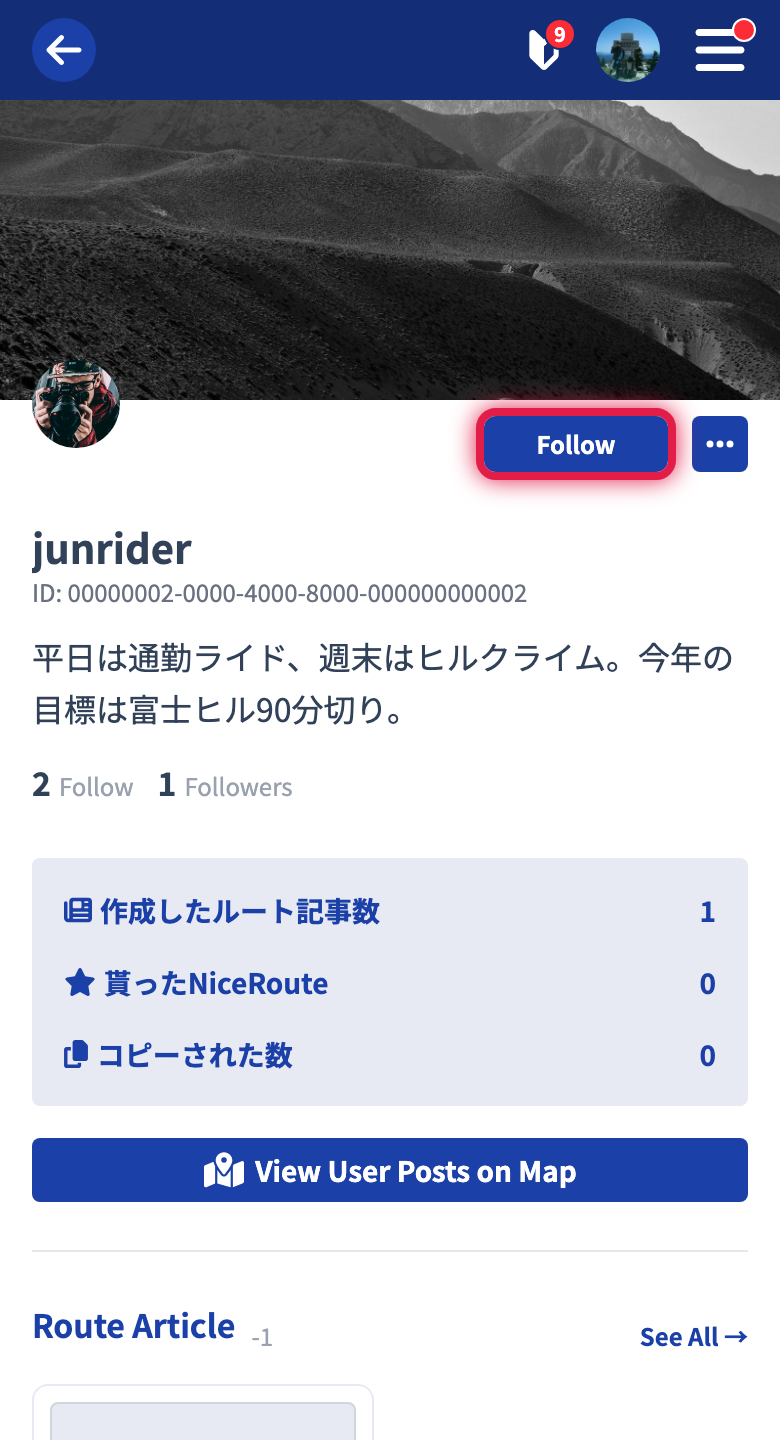
You can check the list of users you follow and users who follow you from Following on My Page.
Messaging Other Users
You can exchange one-on-one messages with other users — handy for socializing, private conversations, and reaching out about team invitations.
There are two ways to start.
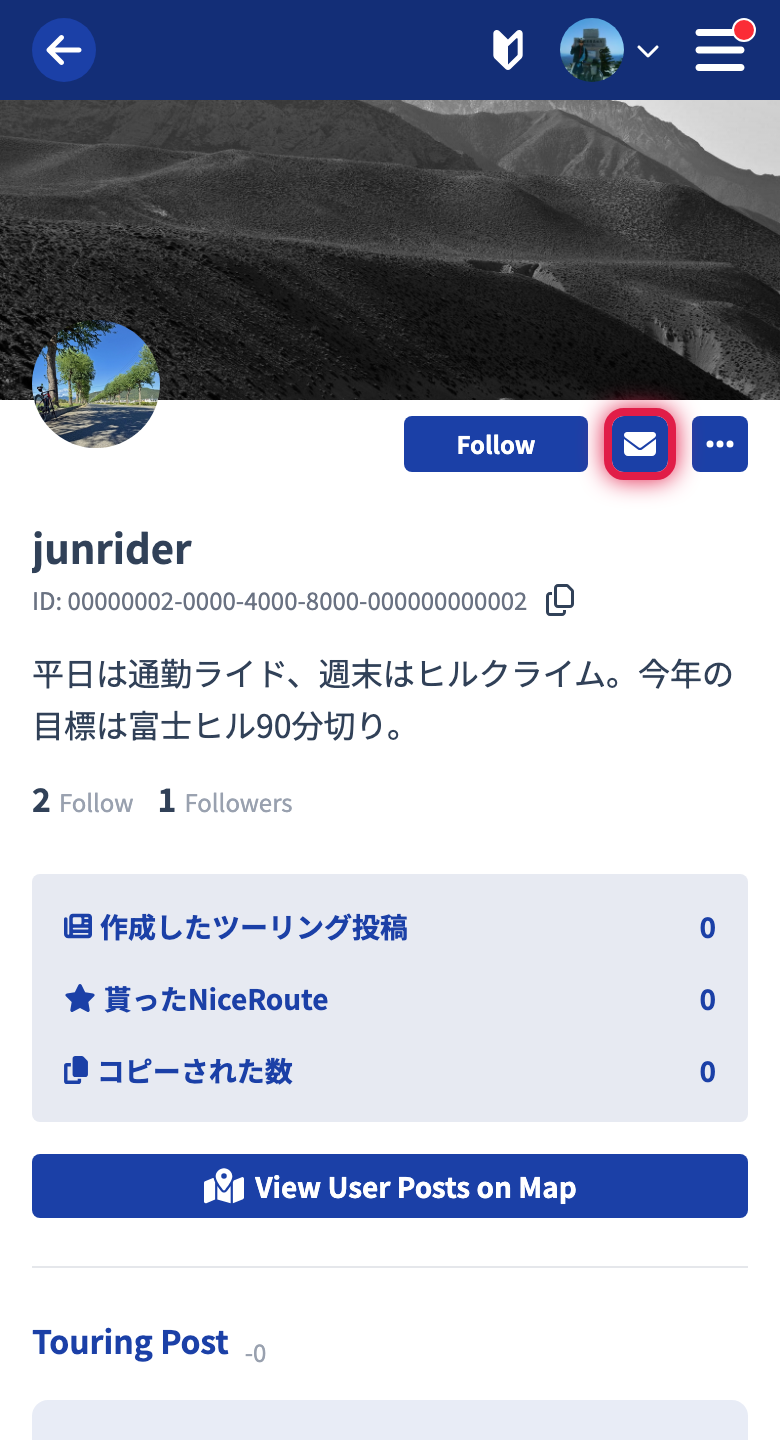
- Tap the button on the other user’s profile
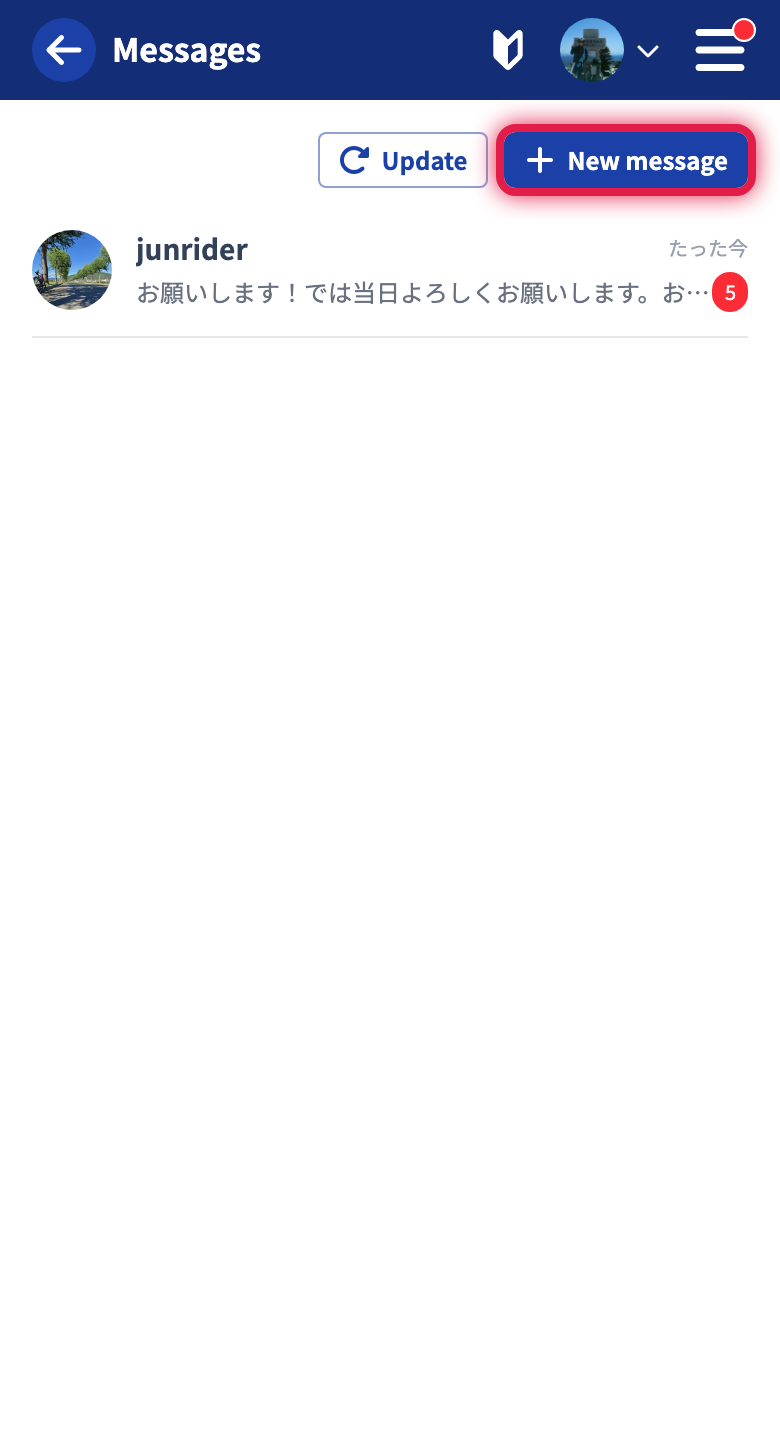
- Open Messages on My Page and tap “New message”. You can pick someone “From follows” or enter their user ID — with an ID, tap “Check” to preview their profile before starting
Your conversations are listed per user in Messages, with an unread count when there are new messages.
In the conversation screen you can send text and images.
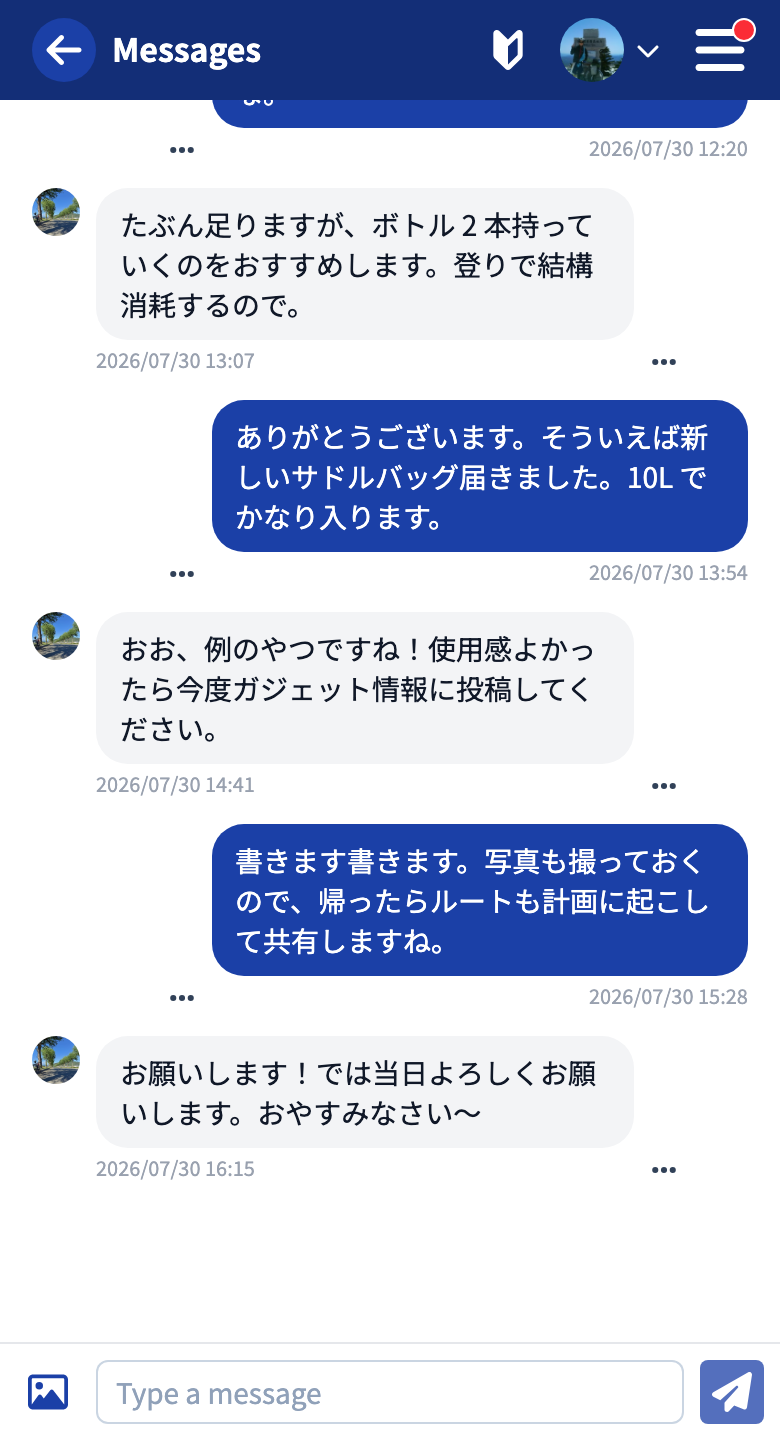
- Tap “Update” to check for new messages from the other user
- Use “Load older messages” to scroll back through the history
- You can delete a message you sent from the next to its bubble. Deleting also removes it from the other user’s screen
- If a message from the other user is problematic, use “Report message” in the same menu
Images sent in messages are kept for 7 days. Once the period passes, the image is no longer displayed — upload photos you want to keep as posts, or download them.
Blocking a User
You can block a troublesome user. When you block someone, they can no longer comment on your posts.
- Open the profile of the user you want to block.
- Tap the at the top right.
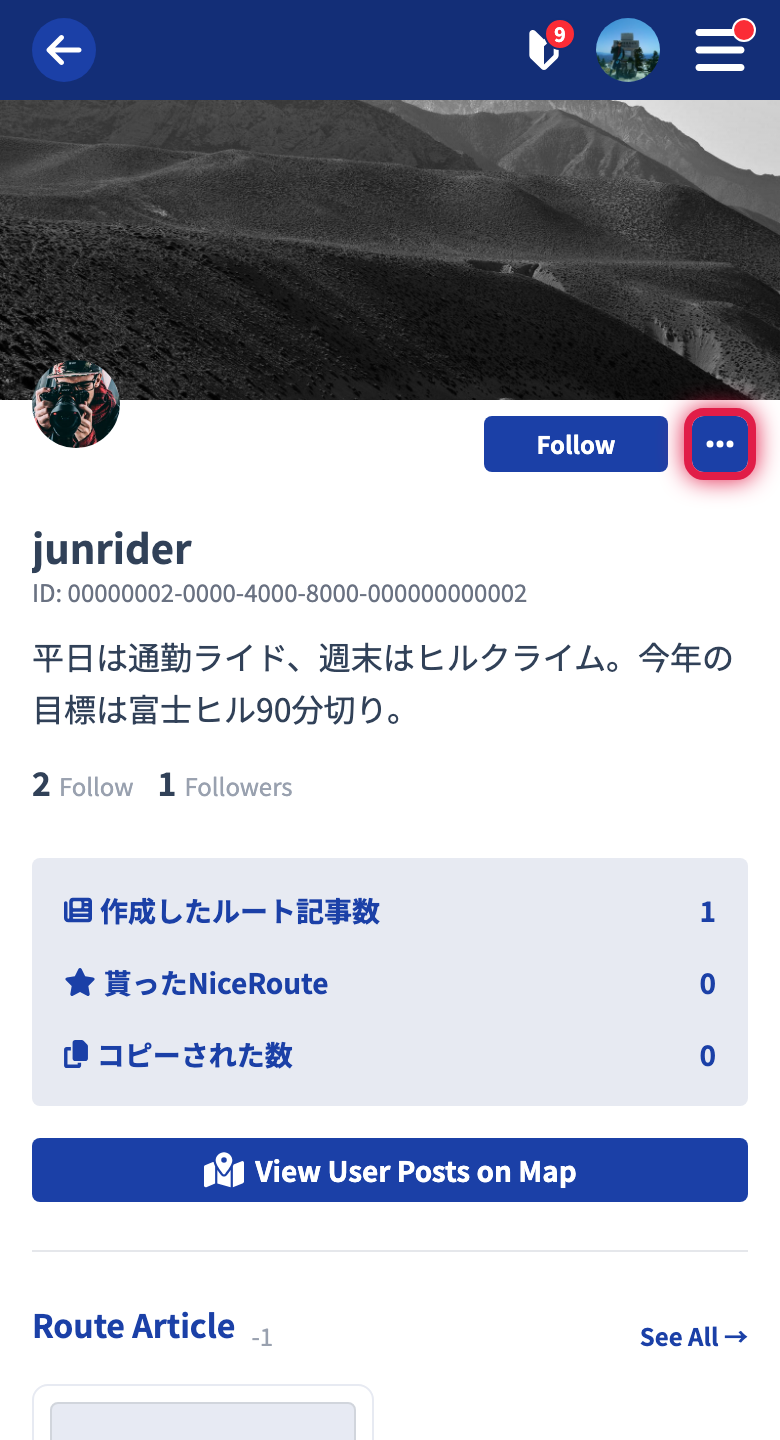
- Choose “Block this user” from the menu that opens.
- Confirm on the confirmation screen.
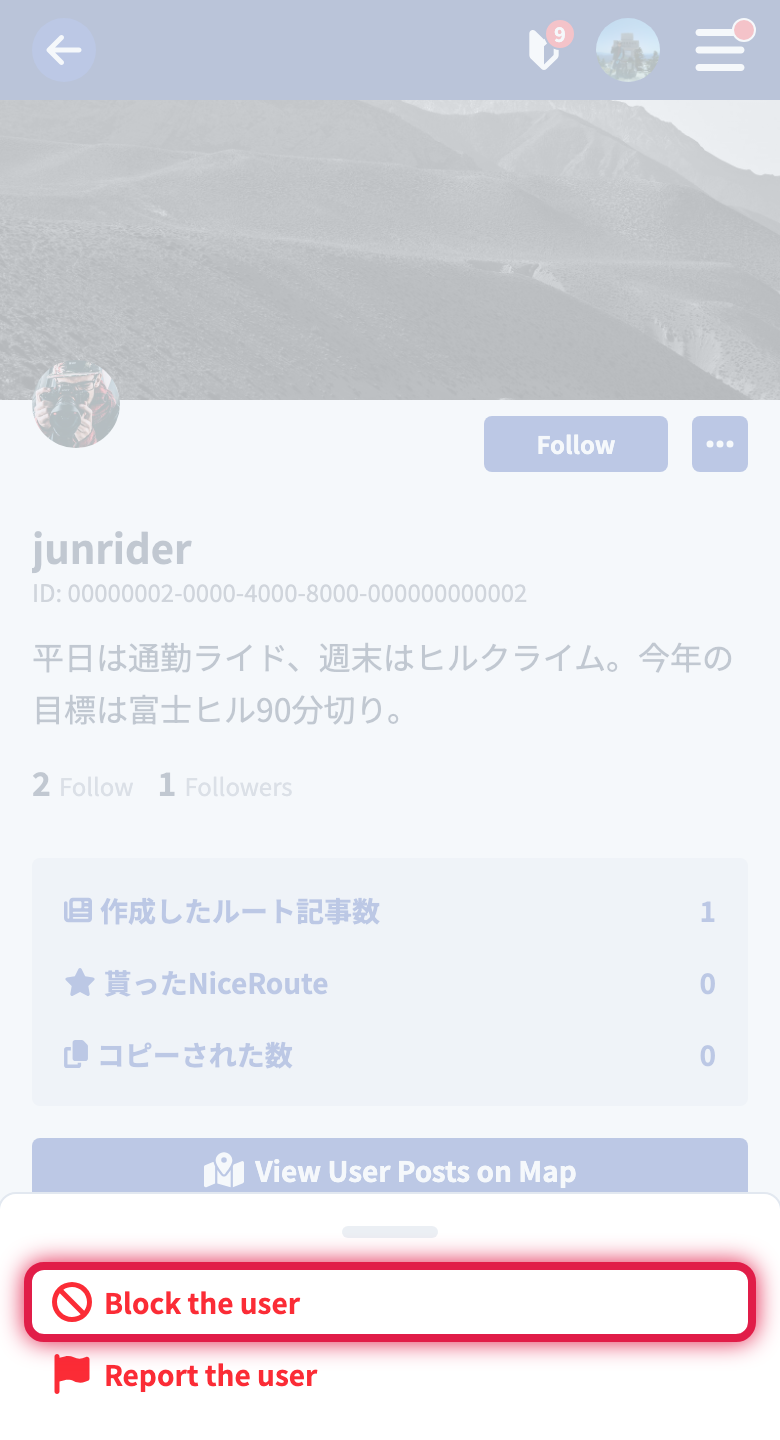
For a blocked user, the follow button shows “Blocking.” To unblock, use the same menu.
Tutorials
- Quick Start
Getting started with RouteShare
- Explore
List, map, and article views
- Account
Sign up, login, profile, settings
- Create
Quick posts, touring posts, gadget articles
- Planning
Create, share, and copy touring plans
- Tracking
Recording and editing tracks
- Teams
Create and join teams, team posts and chat
- Actions
Likes, comments, follows
- Manage
Managing your posts