How to Sign Up and Log In
To use all of RouteShare’s features (creating articles, Nice Route, bookmarks, following, and more), you need an account. This page explains how to sign up and log in.
How to Sign Up
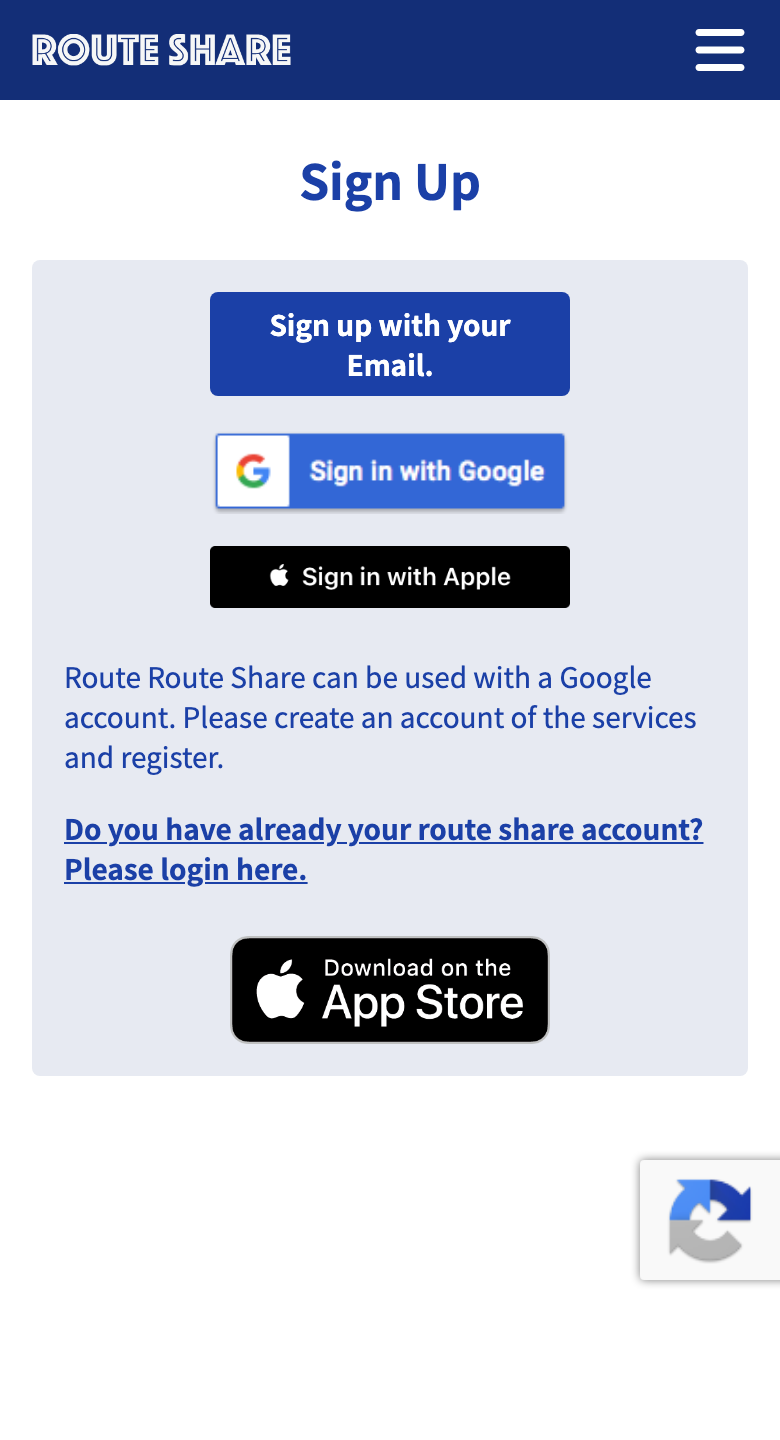
From the sign-up page, you can register using any of the following methods.
- Email address and password
- Google account
- Apple account (available in the iOS app or the browser version)
Signing Up with an Email Address
On the email sign-up form, you enter a nickname, email address, password, and language.
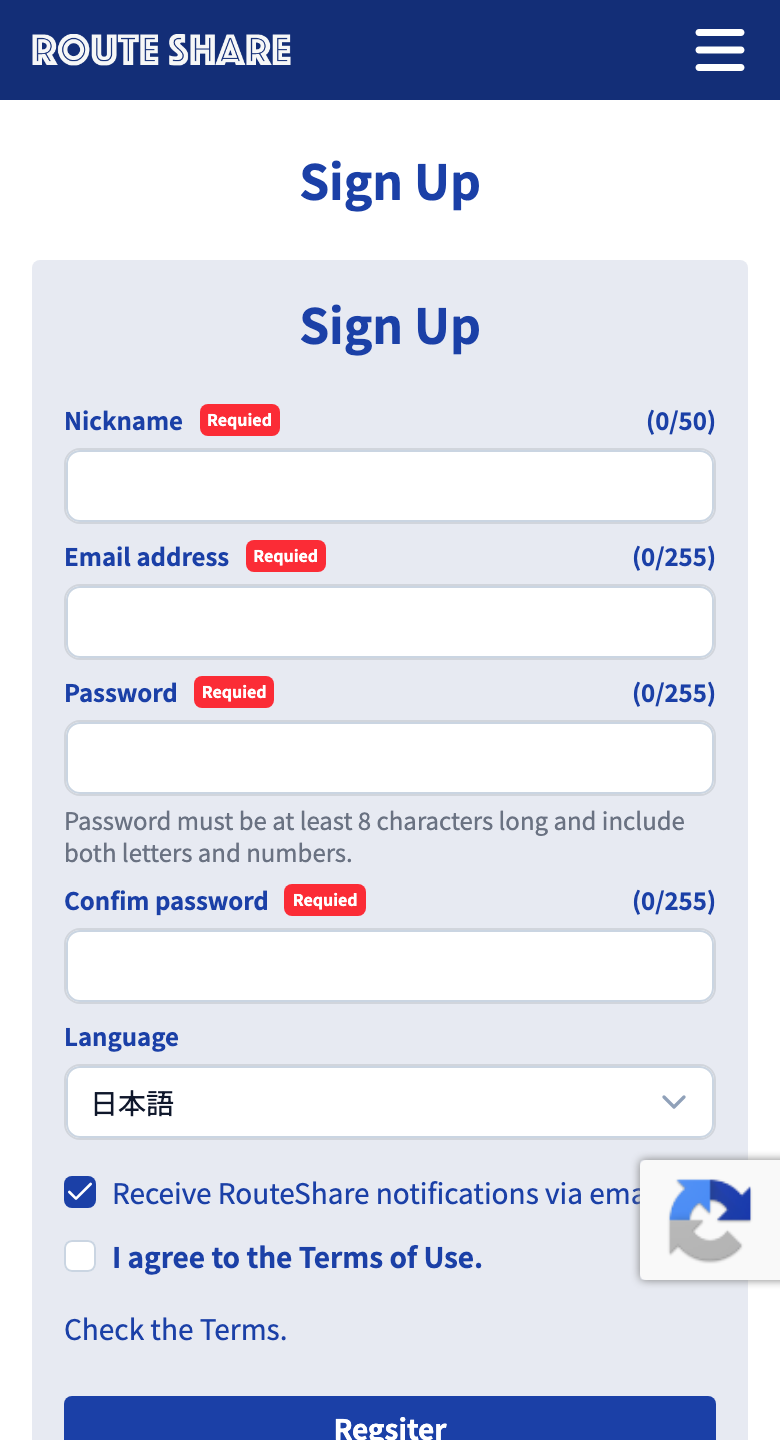
| Item | Details |
|---|---|
| Nickname | Shown publicly as the author name on your posts. You can change it later on the profile screen |
| Email address | Private; used for login and contact |
| Password | At least 8 characters, including letters and numbers |
| Language | Choose Japanese or English (US) |
Check the box to agree to the Terms of Use and tap “Register.” A 6-digit verification code will be sent to the email address you entered.
Entering the verification code activates your account. The code is valid for 1 hour. If it expires, you can resend it with “Resend your confirm code.”
Signing Up with a Google Account
Choose “Sign in with Google” and select the Google account you want to link. If you are not signed in to Google yet, log in to Google first.
Allowing it on the confirmation screen creates your account. Since the address has already been verified by Google, email verification is not required.
Signing Up with an Apple Account
On the sign-up page of the iOS app or the browser version, choose “Sign in with Apple.” Allowing it on the Apple ID confirmation screen creates your account.
Sign in with Apple is available only in the iOS app or the browser version.
How to Log In
If you already have an account, log in from the login screen.
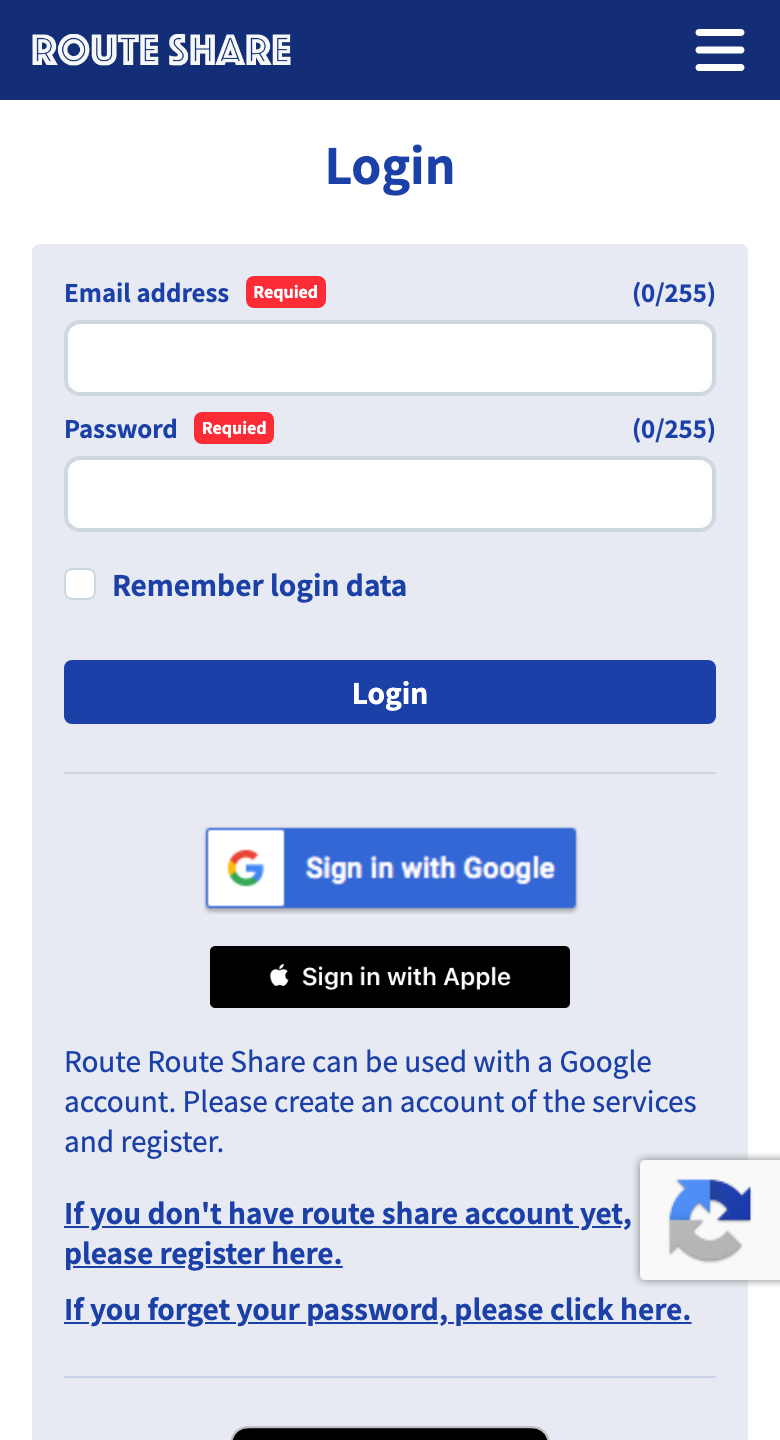
- If you signed up with an email address: your email address and password
- If you signed up with Google: “Sign in with Google”
- If you signed up with Apple (iOS app / browser version): “Sign in with Apple”
After logging in, you can access Start Mission, profile editing, and more from My Page, which you can open from the menu.
If You Forget Your Password
Tap “Forgot your password?” on the login screen.
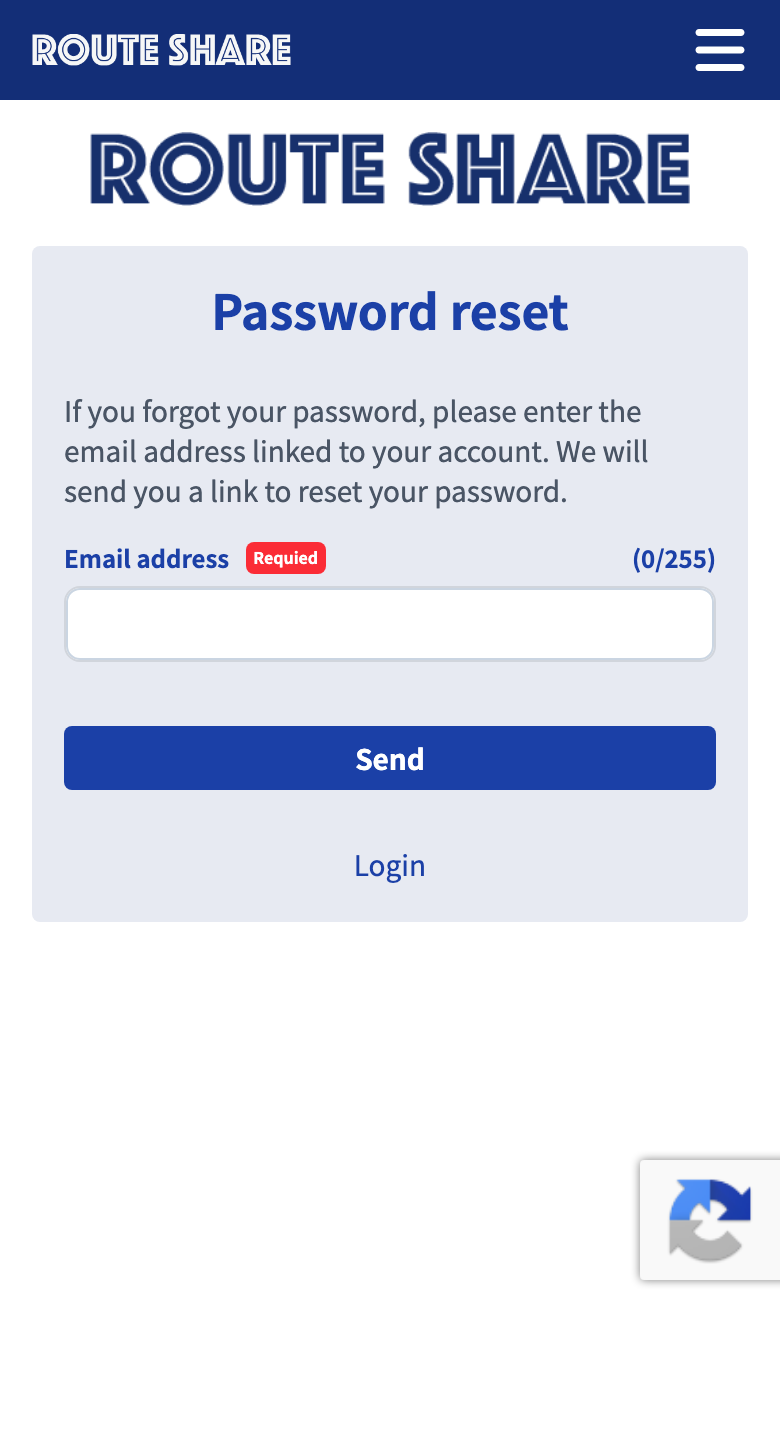
Enter the email address you registered with and submit. A URL for changing your password will be sent to that email address. Follow the instructions in the email to set a new password, then log in again.
Your new password must also be at least 8 characters and include letters and numbers.
Tutorials
- Quick Start
Getting started with RouteShare
- Explore
List, map, and article views
- Account
Sign up, login, profile, settings
- Create
Quick posts, touring posts, gadget articles
- Planning
Create, share, and copy touring plans
- Tracking
Recording and editing tracks
- Teams
Create and join teams, team posts and chat
- Actions
Likes, comments, follows
- Manage
Managing your posts