How to Update Your Profile
Once you register an account, you can edit your profile. Your profile is public and is shown together with your articles. This page explains how to edit it.
You can edit your profile from the profile page after logging in.
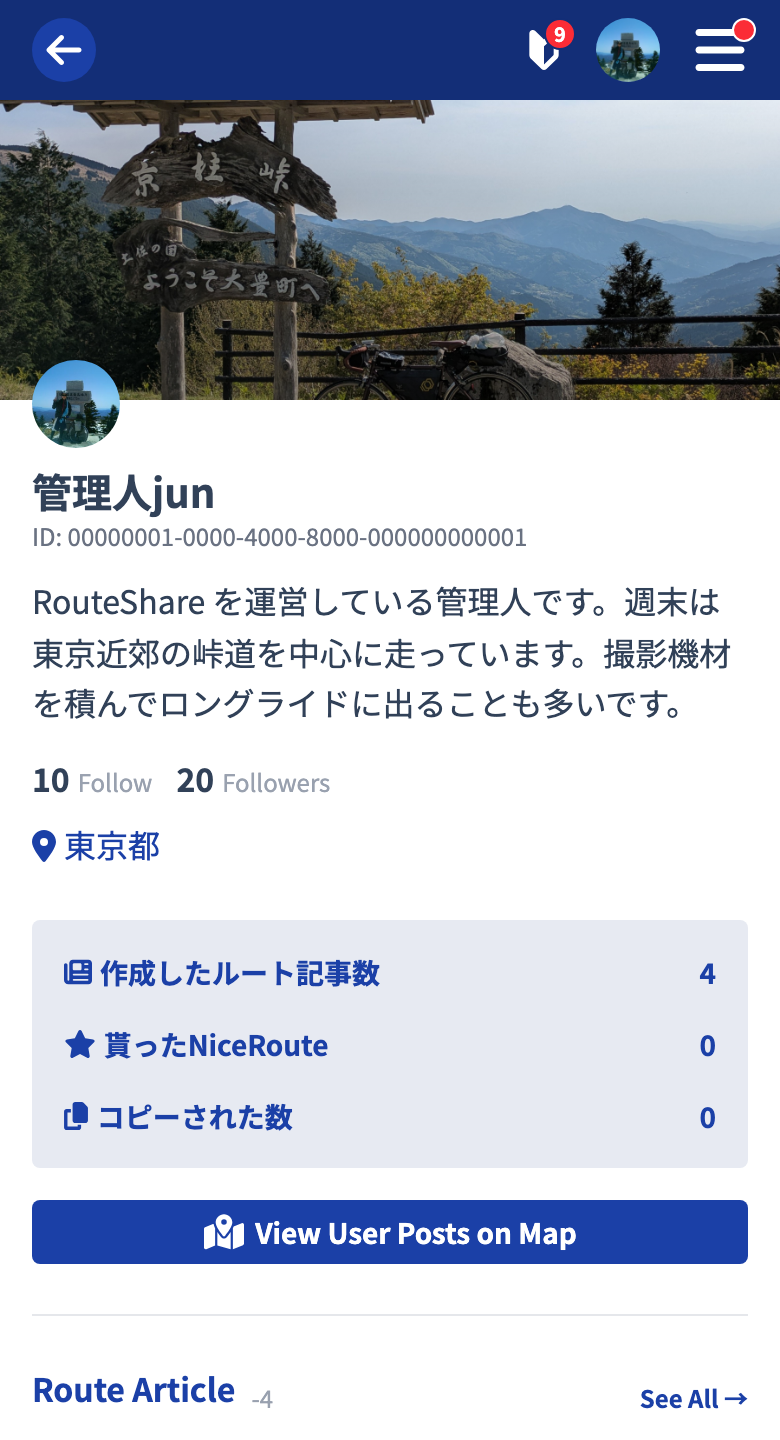
On the profile screen, an avatar image is shown on top of a background image at the top, with your profile items listed below.
Items You Can Edit
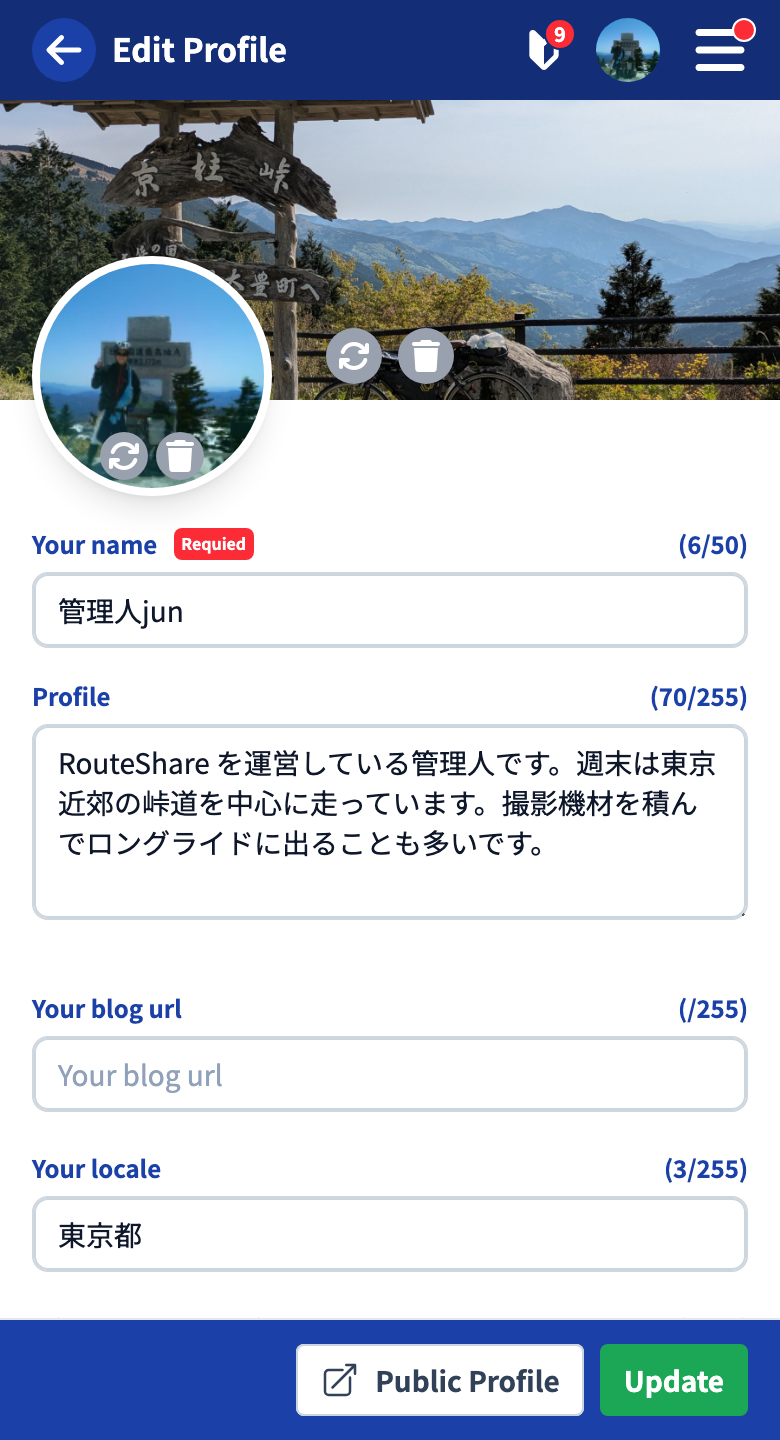
| Item | Details |
|---|---|
| Name | Shown as the author name on your posts |
| Profile | A short self-introduction |
| Site / blog URL | The URL of your personal site or blog |
| Location | The area where you are usually active |
| X (formerly Twitter) user ID | Enter your ID to show a link on your profile |
| Instagram username | Enter your username to show a link on your profile |
| Facebook username | Enter your username to show a link on your profile |
| Language | Choose Japanese or English (US) |
Tap “Update” after entering your information to save.
Profile Image
When there is no image yet, tap the circular area to choose one. When an image is already set, use the icons shown over the image.
- Choose a different image
- Delete the image
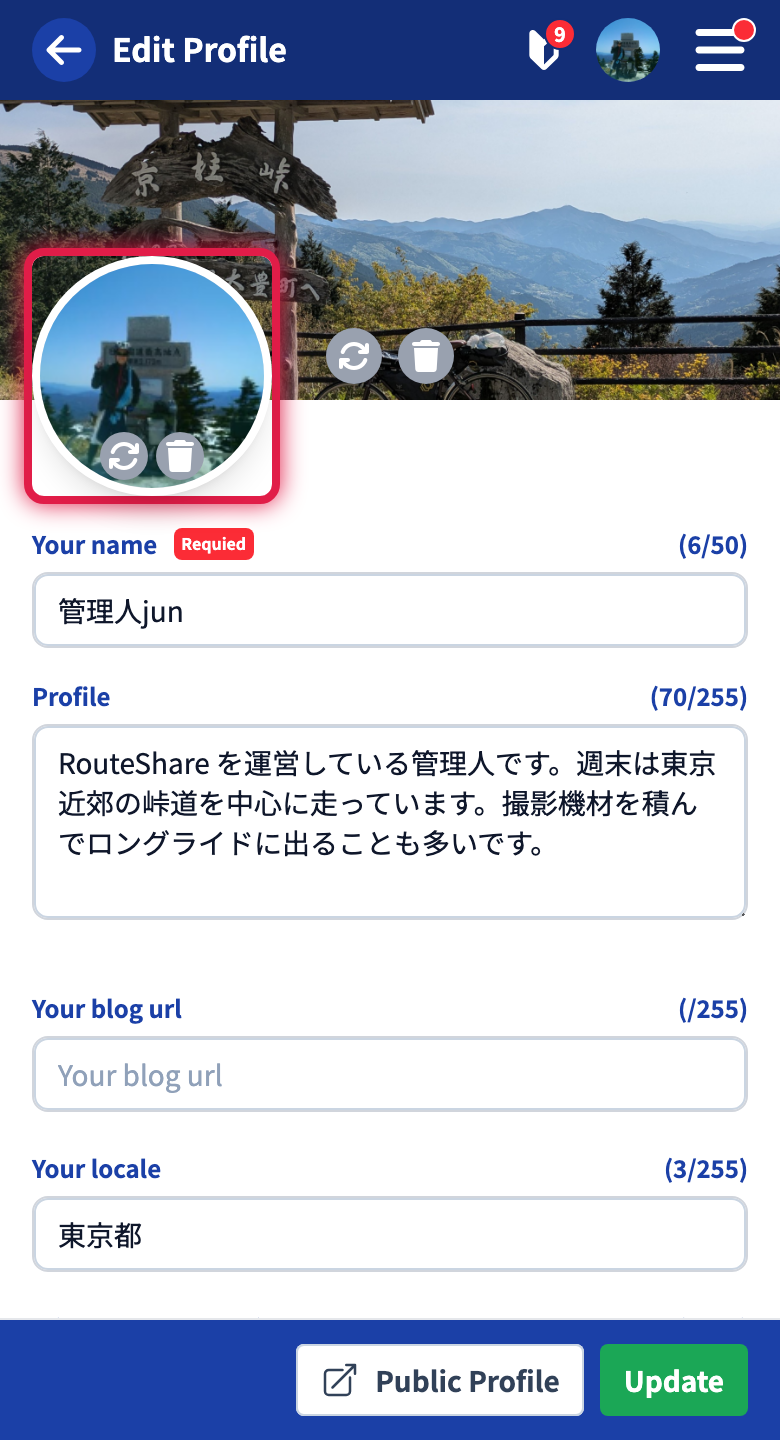
When you choose an image, the “Adjust avatar image” screen opens, where you can adjust the visible area by cropping. Tap “Confirm” to crop the image to a square and save it. To start over, tap “Cancel.”
Background Image
This is the wide image shown prominently at the top of your profile. When there is no image yet, tap the empty header area to choose one. When an image is already set, use the icons shown over the image.
- Choose a different image
- Delete the image
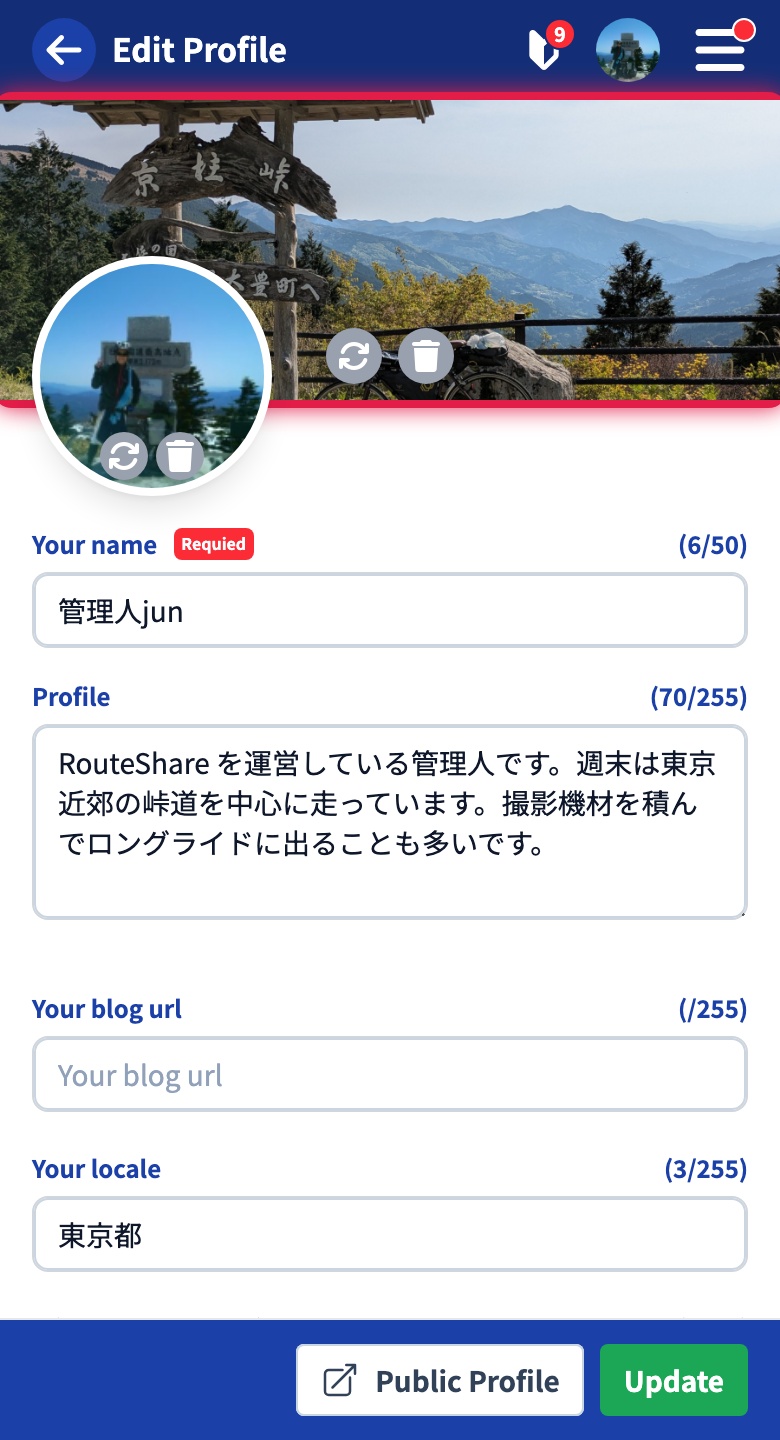
When you choose an image, the “Adjust background image” screen opens, where you can adjust the visible position by cropping. Tap “Confirm” to resize it to the wide format and save it. To start over, tap “Cancel.” For the supported formats and sizes of the source image, see Uploading image files.
Tutorials
- Quick Start
Getting started with RouteShare
- Explore
List, map, and article views
- Account
Sign up, login, profile, settings
- Create
Quick posts, touring posts, gadget articles
- Planning
Create, share, and copy touring plans
- Tracking
Recording and editing tracks
- Teams
Create and join teams, team posts and chat
- Actions
Likes, comments, follows
- Manage
Managing your posts