Managing Your Account Information
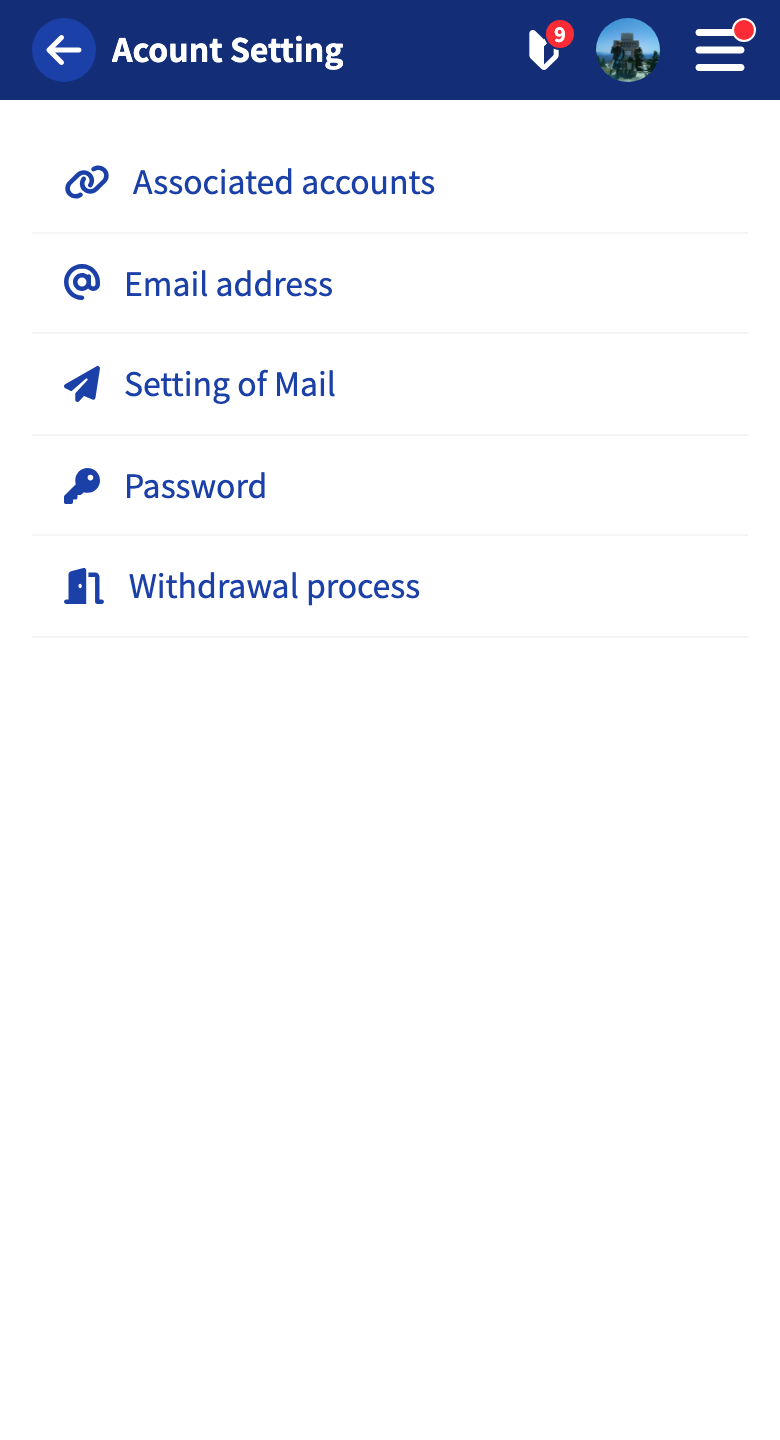
Separately from your public profile, you manage your login information and linked accounts on the account settings screen.
The menu contains the following items.
- Linked accounts
- Email address
- Mail delivery settings
- Password
- Withdrawal
Linked Accounts
On Linked accounts, you can link and unlink Google and Apple.
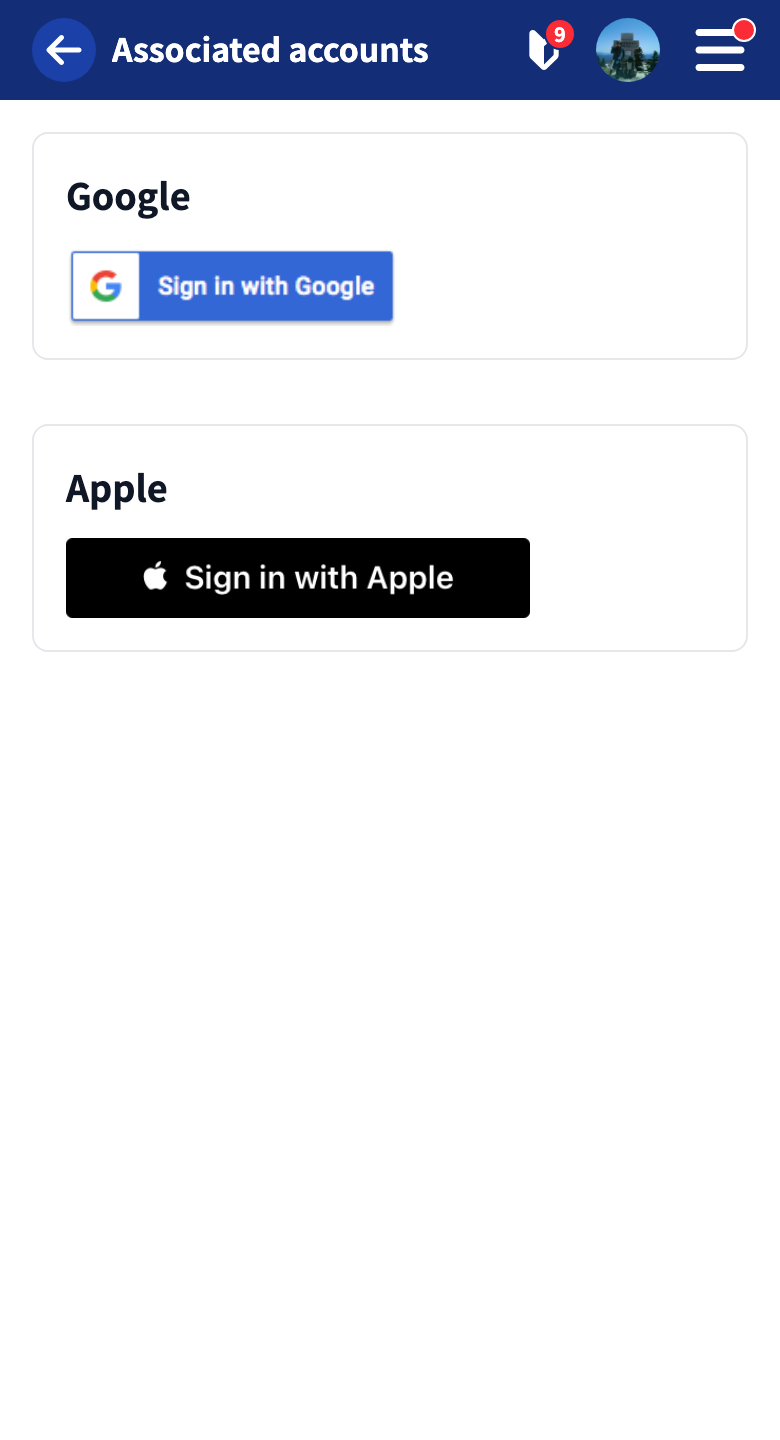
| Provider | What you can do | Notes |
|---|---|---|
| Log in with your Google account | Web and app | |
| Apple | Log in with your Apple ID | iOS app / browser version (not supported on Android) |
You can unlink at any time.
⚠️ Prerequisites for unlinking:
- If you signed up only with Google or Apple, you must first set a password.
- If the same Google or Apple account is already linked to another RouteShare account, you cannot link it, since that would be a duplicate link.
Changing Your Email Address
You can change your registered email address on Change email.
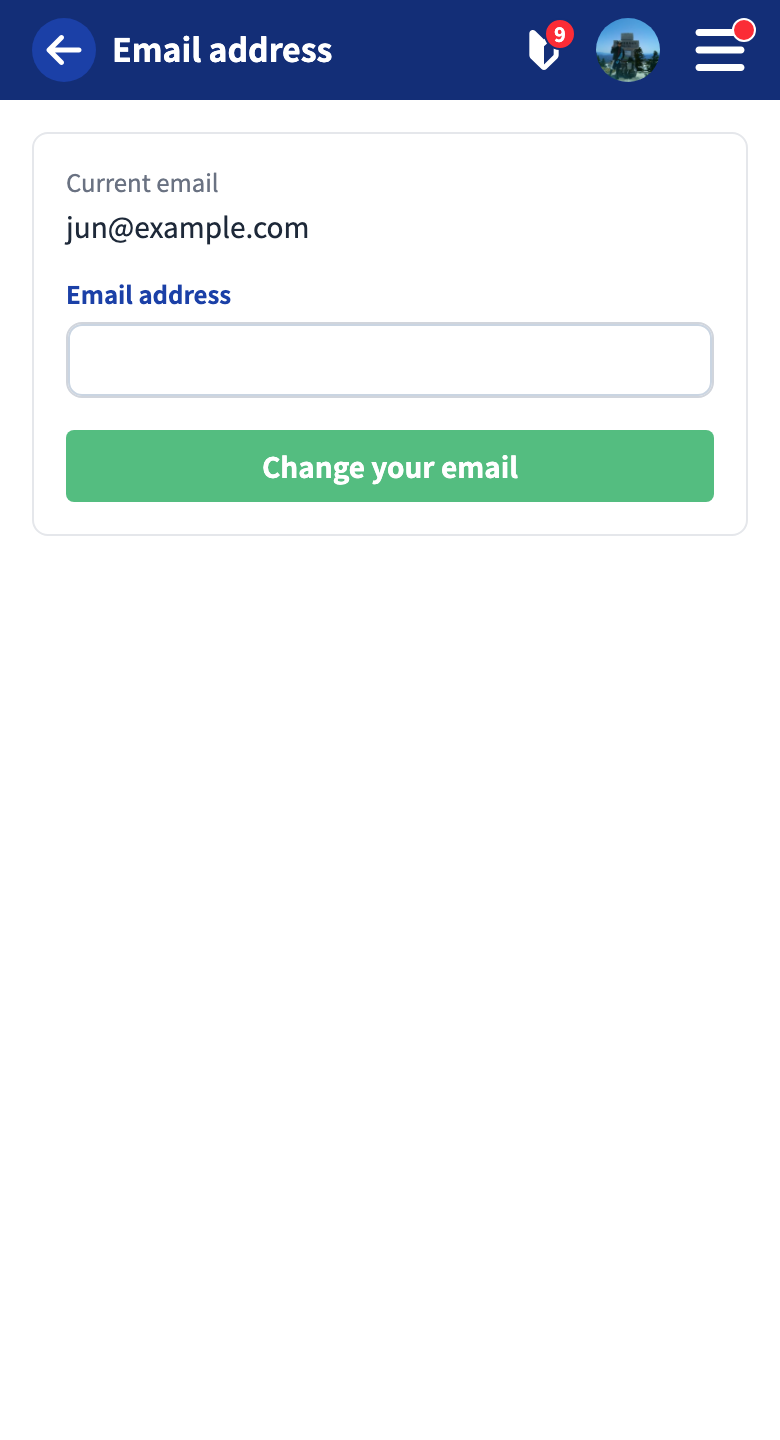
Enter your new email address and tap “Change your email.” A verification code will be sent to the new address. Enter the code you receive to complete the change. The code is valid for 1 hour. If it expires, start the change procedure again.
If you signed up via another app, the email address tied to that Google account is set by default. Linking is maintained after the change, but if you want to log in with email, set a password separately.
Tutorials
- Quick Start
Getting started with RouteShare
- Explore
List, map, and article views
- Account
Sign up, login, profile, settings
- Create
Quick posts, touring posts, gadget articles
- Planning
Create, share, and copy touring plans
- Tracking
Recording and editing tracks
- Teams
Create and join teams, team posts and chat
- Actions
Likes, comments, follows
- Manage
Managing your posts