Changing or Resetting Your Password
You can manage your email address, password, and linked accounts on the account settings screen.
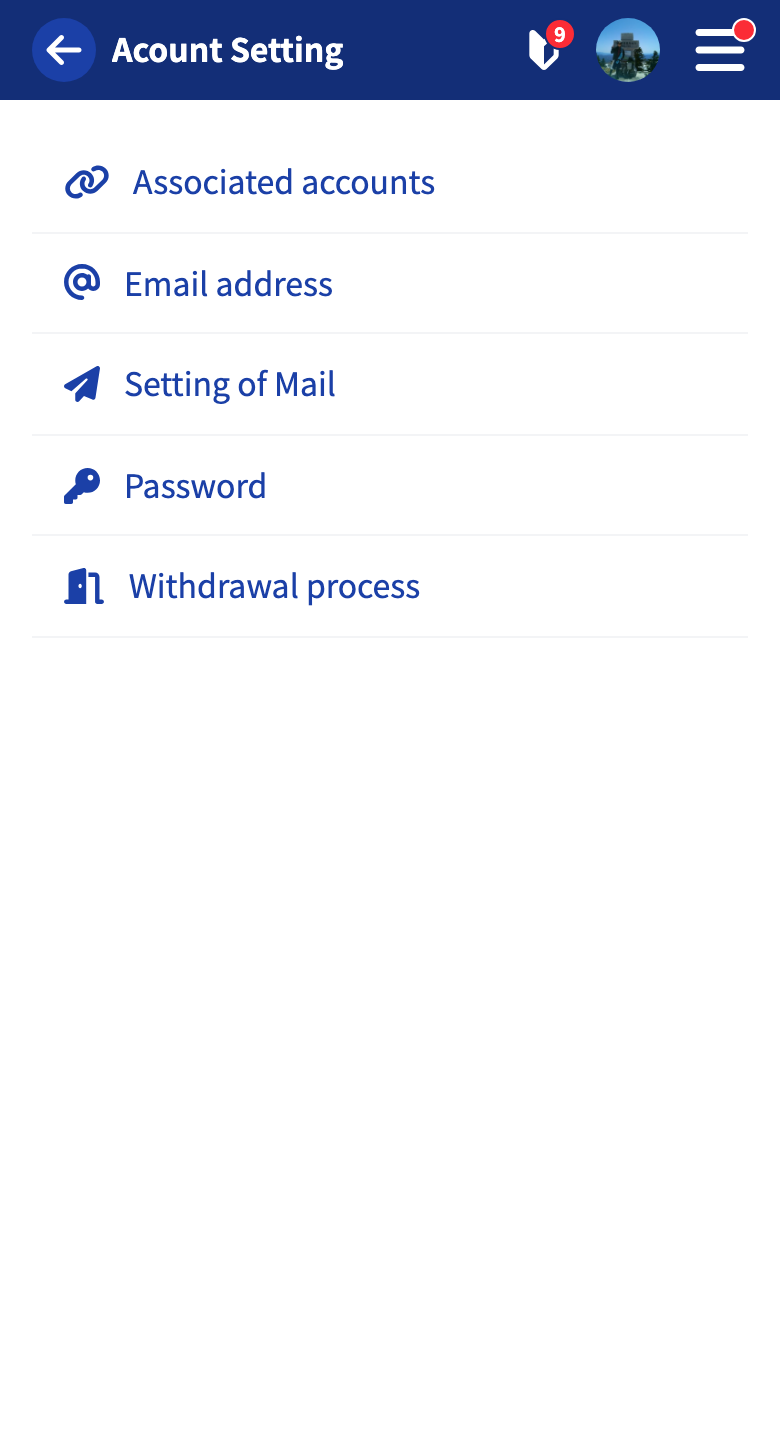
Password Requirements
When you set a new password, it must meet the following requirements.
- At least 8 characters
- Includes both letters and numbers
Changing Your Password While Logged In
Open Change password within account settings.
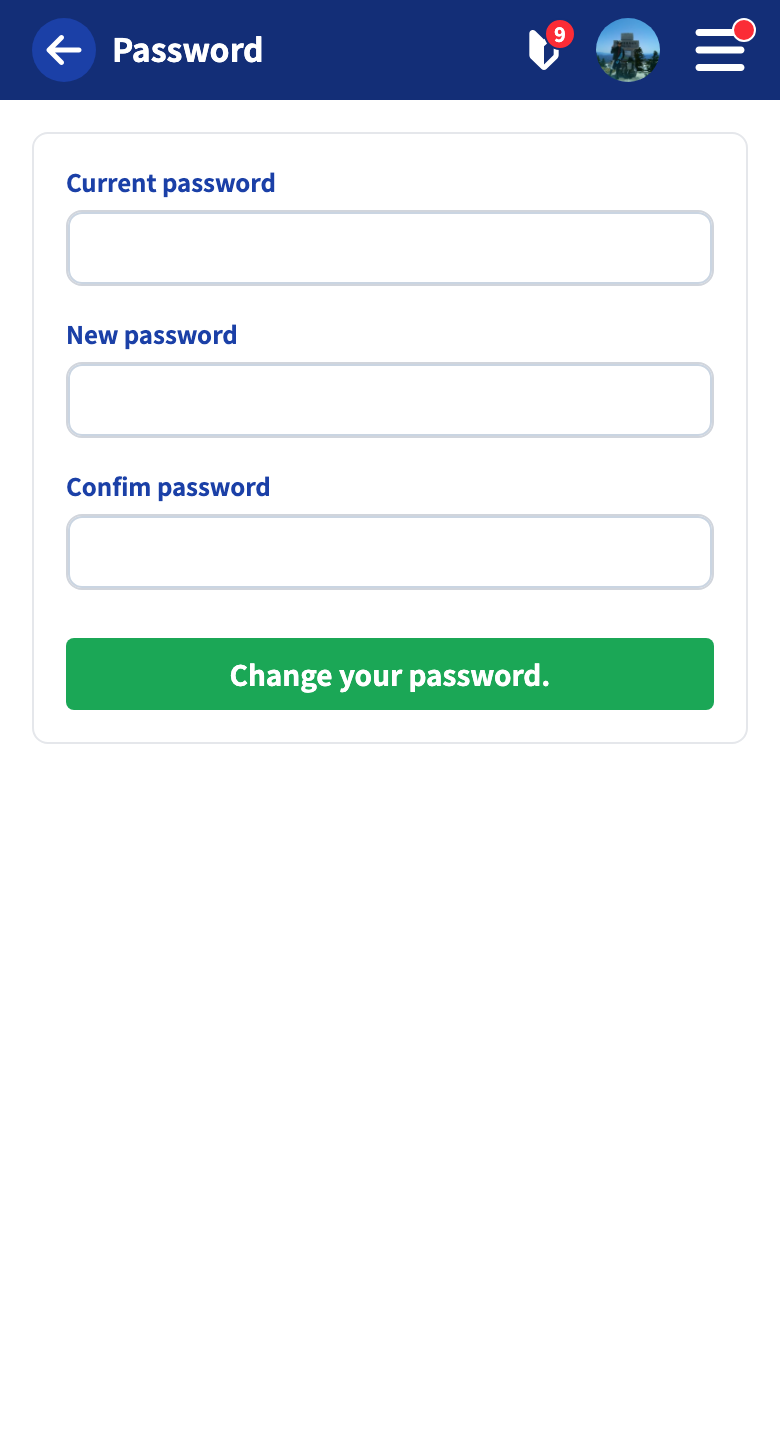
Enter your current password, enter your new password in both the input field and the confirmation field with the same value, and tap “Change password” to complete the change.
If you signed up only with Sign in with Google or Apple, you do not have a password set yet. In that case, set a password first from the Set a new password form, which has no current-password field. Setting a password is required for operations such as unlinking an account.
If You Forgot Your Password and Cannot Log In
You can reset it from the password reset page.
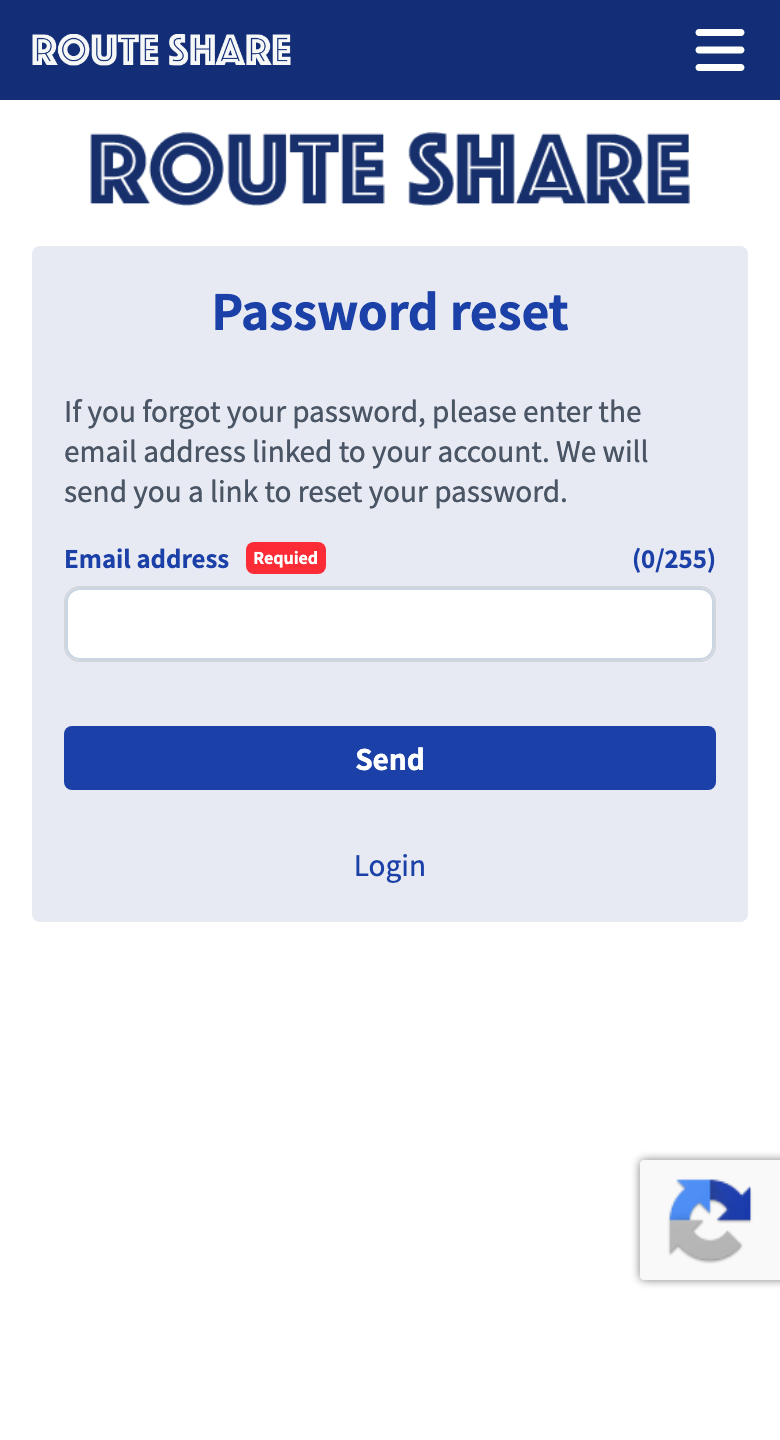
Enter the email address you registered with and submit. A URL for resetting your password will be sent to that email address. Follow the instructions in the email to set a new password, then log in again.
Tutorials
- Quick Start
Getting started with RouteShare
- Explore
List, map, and article views
- Account
Sign up, login, profile, settings
- Create
Quick posts, touring posts, gadget articles
- Planning
Create, share, and copy touring plans
- Tracking
Recording and editing tracks
- Teams
Create and join teams, team posts and chat
- Actions
Likes, comments, follows
- Manage
Managing your posts