Managing Your Posts
This page introduces how to check, edit, and delete the touring posts, quick posts, and gadget info you have posted.
Two Management Screens on My Page
| Screen | Role |
|---|---|
| Created items | Manage posts that are published, shared by URL, or need fixing |
| Drafts | Manage posts in draft status |
On both screens, you can switch the post type with the tabs at the top.
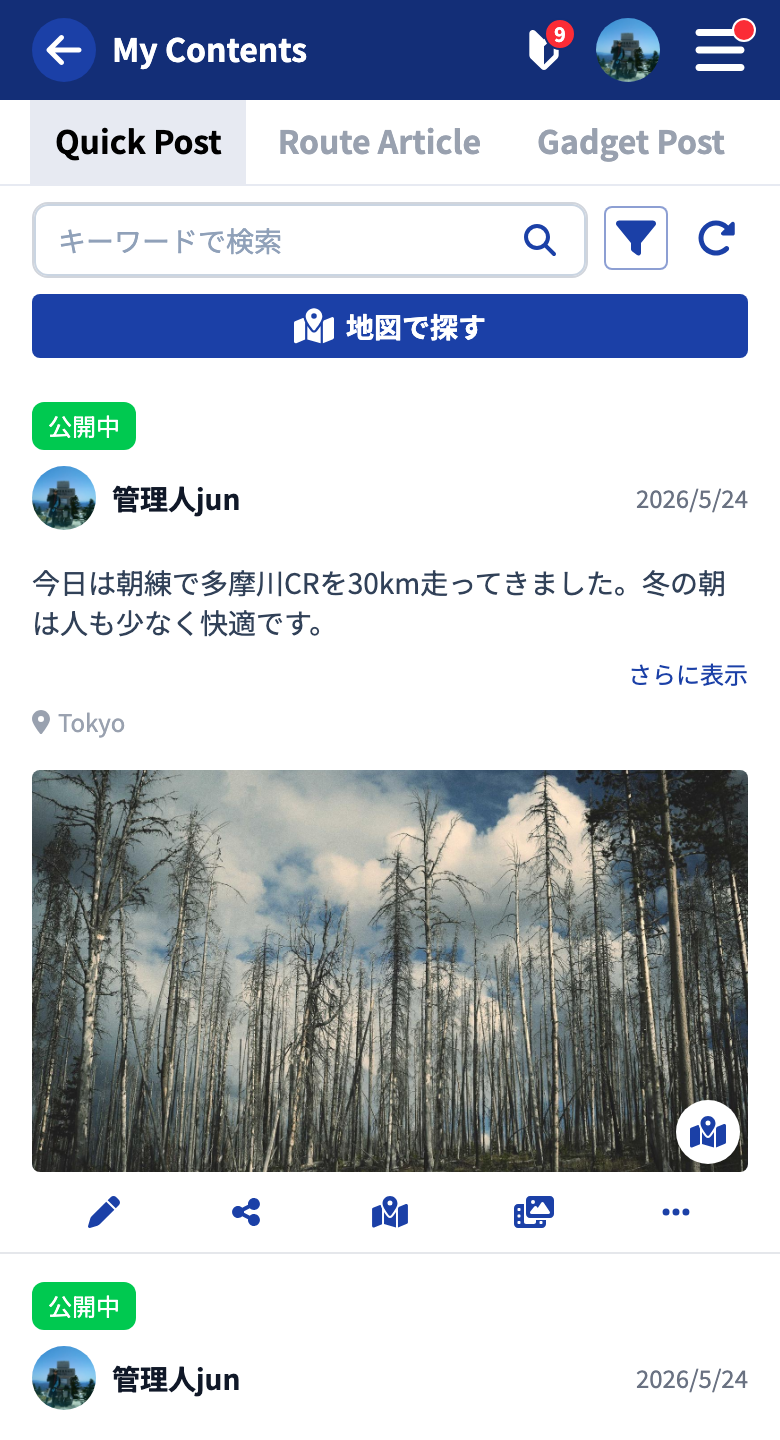
- Touring Post
- Quick Post
- Gadget Info
How to Read a Post Card
A card shows a thumbnail / title / status.
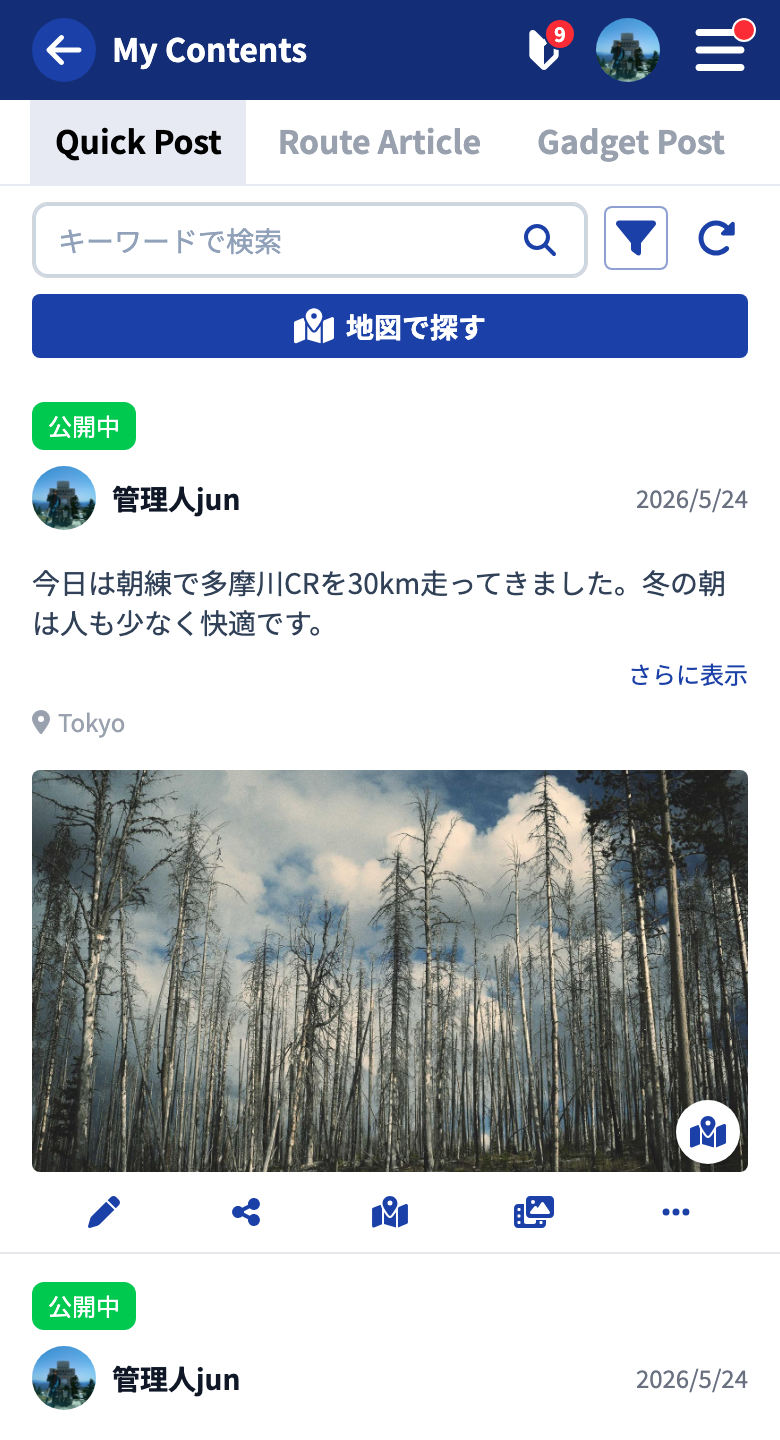
Tapping a card opens its public page (only for published or URL-shared posts).
From the icons at the bottom of the card, you can do the following.
- Edit — open the editor to revise the content
- Share — show the share URL
- Open the map (for posts with geographic information)
- Create a location image (for published posts with geographic information)
- Menu (copy geographic information / delete)
Types of Status
There are four kinds of status badges shown on a card.
| Status | Meaning |
|---|---|
| Published | Anyone can view it |
| Shared by URL | Only people who know the URL can view it. You can get the share URL on the edit screen |
| Draft | Only you can see it |
| Needs fixing | The administrator has stopped publication because of a possible Terms of Use violation |
Editing and Deleting
Edit from , and delete from “Delete” in the menu (deleting shows a confirmation dialog).
Unpublishing
For a published post, choosing “Return to draft” on the edit screen lets you temporarily make it private (a draft). You can fix the content and then publish it again.
Managing Drafts
Posts in progress gather on Drafts on My Page. This is the screen for continuing posts you saved partway, and tidying up drafts you no longer need.
- Switch the post type (quick post / touring post / gadget info) with the tabs at the top.
- Tapping a card opens the editor so you can continue editing.
- Tap “Publish” to switch it to published.
- Delete unwanted drafts from the card’s edit menu.
Drafts are not visible to anyone but you. You can casually save content you’ve written partway.
For the steps to finish a draft and publish it, see each post type’s tutorial (Creating a touring post / Creating a quick post / Creating gadget info).
If “Needs Fixing” Is Shown
When a post is judged to possibly violate the Terms of Use, the administrator stops publication of that post and notifies you by email and notification. A stopped post is shown with the “Needs fixing” status.
For the relevant post, please take one of the following actions.
- Delete the post.
- Fix the post and tap “Request publication” to request a re-review (on the edit screen of a published post, the “Update” button switches to “Request publication”).
For the Terms of Use, see the Community Policy and Terms of Use.
Tutorials
- Quick Start
Getting started with RouteShare
- Explore
List, map, and article views
- Account
Sign up, login, profile, settings
- Create
Quick posts, touring posts, gadget articles
- Planning
Create, share, and copy touring plans
- Tracking
Recording and editing tracks
- Teams
Create and join teams, team posts and chat
- Actions
Likes, comments, follows
- Manage
Managing your posts