Creating a Quick Post
A quick post is a post for sharing quickly with photos and short text. Use it when you want to casually post scenery or a spot you found during a trip.
Choosing the Post Type
Tap “Create” at the bottom of the screen.
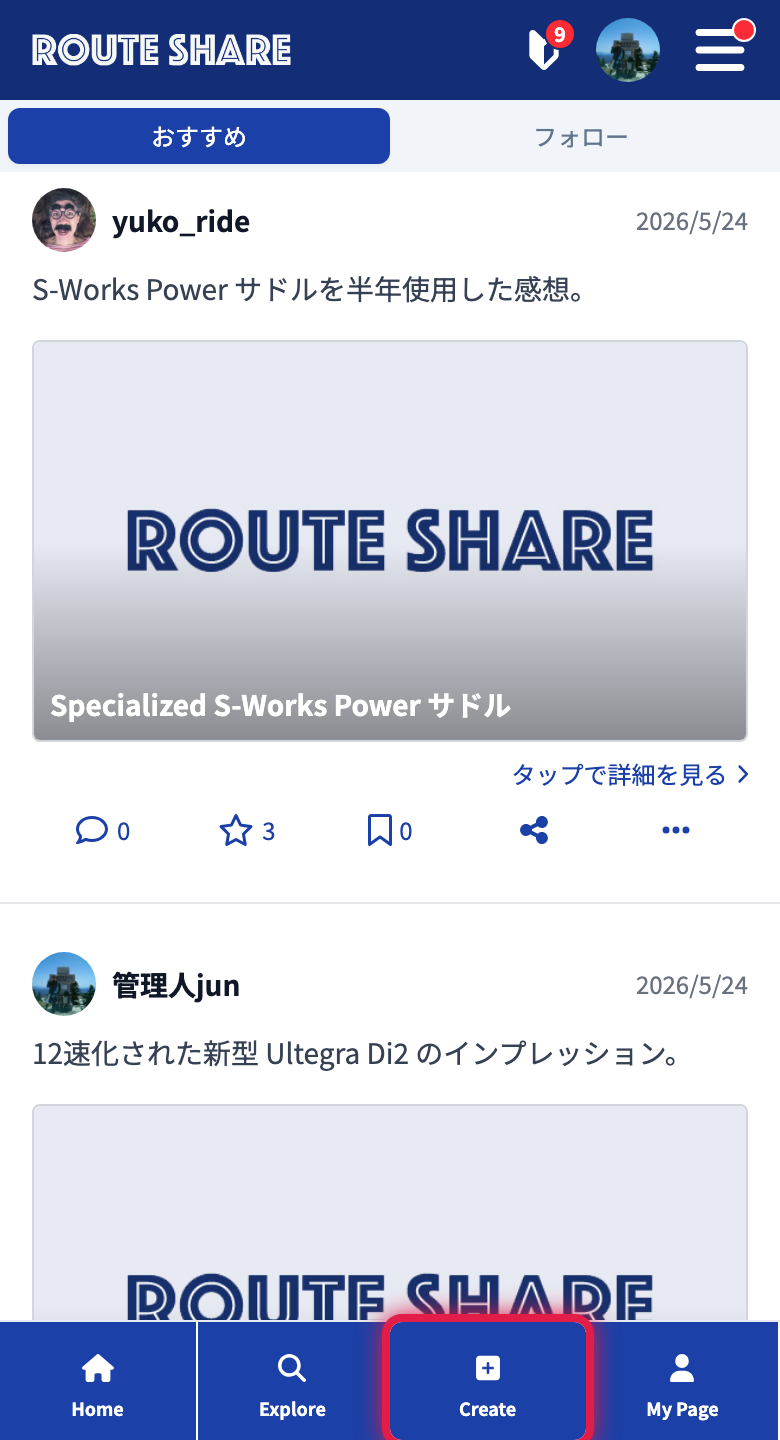
A screen for choosing the post type opens; choose Quick Post here.
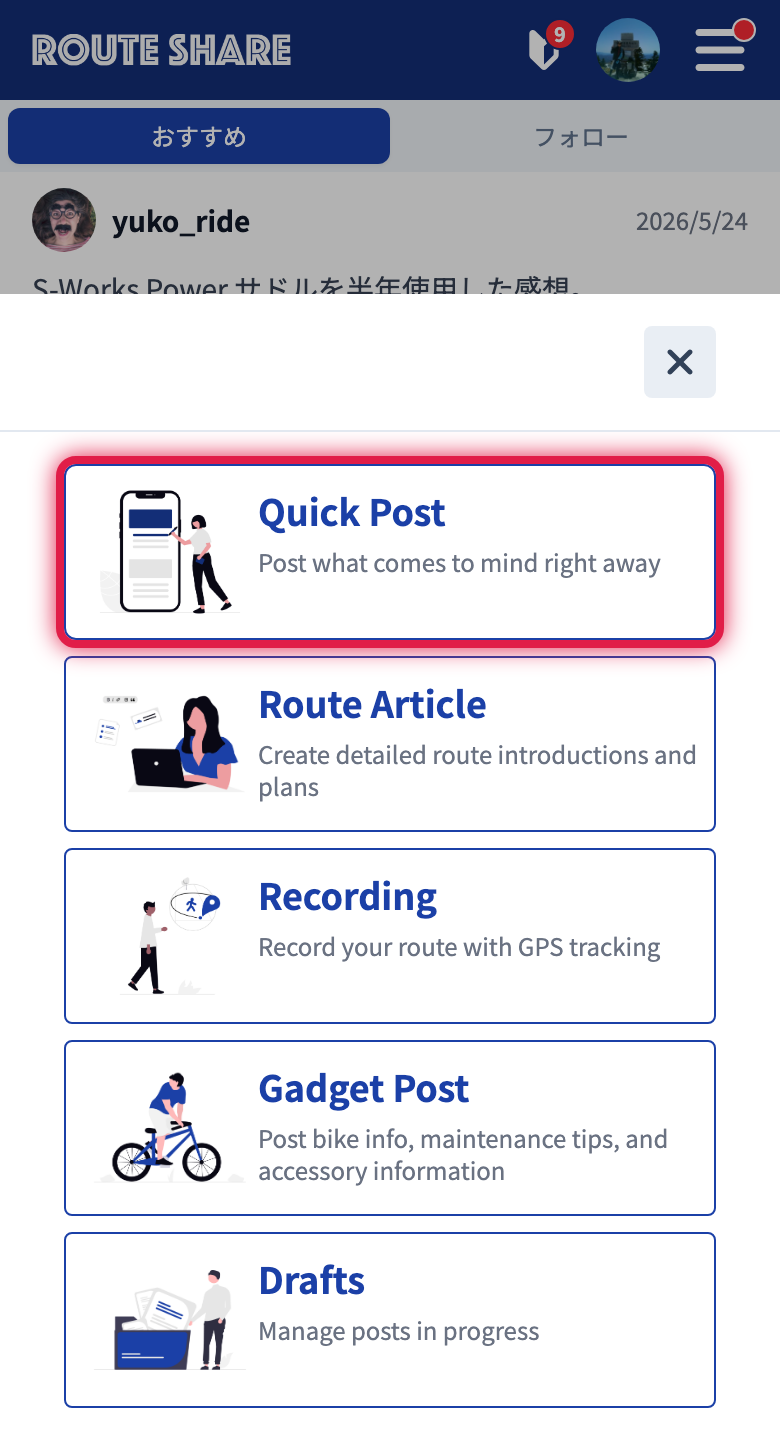
| Type | Difference |
|---|---|
| Touring Post | A full-fledged article made with a map, text, and photos. See Creating a touring post |
| Quick Post | A quick post with short text and photos. Explained on this page |
| Gadget Info | A gear review. See Creating gadget info |
The Editor’s Structure
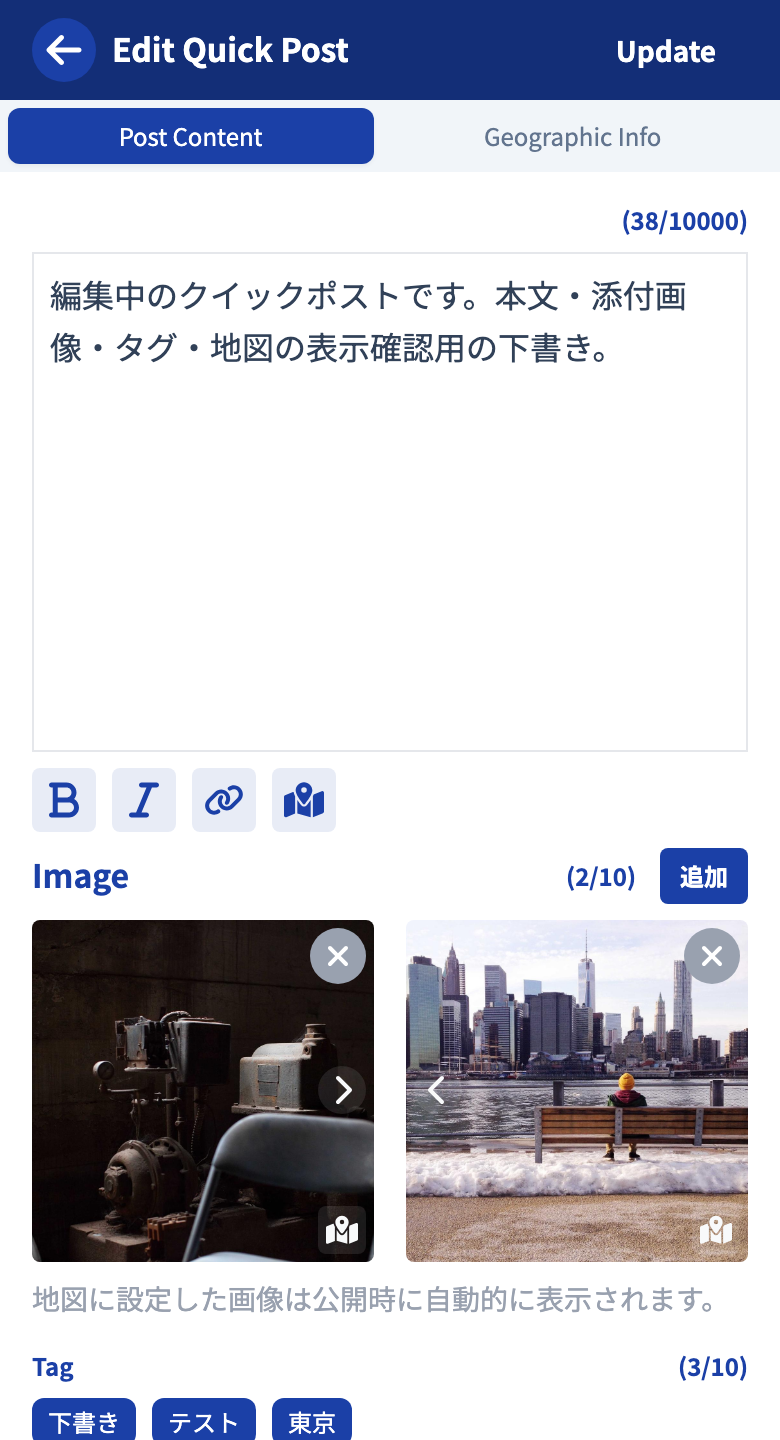
There are two tabs: “Post Content” and “Geographic Info.” Entering geographic information is optional.
Writing Text
You cannot use headings or lists like in a touring post. You can only use bold, italic, links, and map links, since it is intended for short text. To add a map link to text, select the string you want to link and tap the map link button on the toolbar.
Adding Photos
You can add up to 10 photos in the image slider, and switch between them by swiping sideways. You can add a map link to each photo to tie it to a spot or line in the geographic information.
Adding a Map Link
When you tap the map link button on a photo or text that has no map link yet, a menu for choosing how to add one opens.
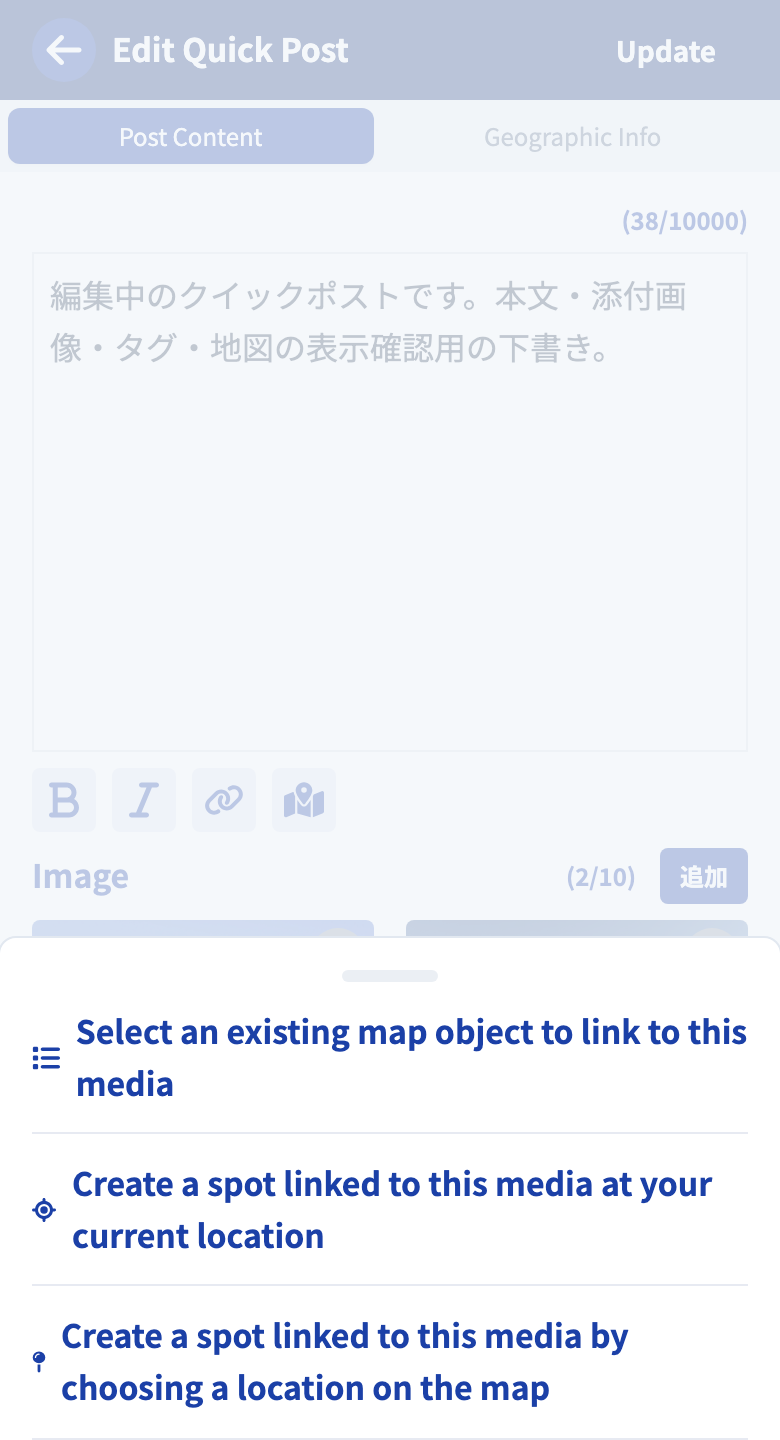
- Select an existing map object — Choose from the spots and lines already created on the geographic information map and tie it.
- Create a spot at your current location — Create a new spot where you are now and tie it right away.
- Create a spot by choosing a location on the map — The map opens; tap the place you want to tie and a new spot is created there.
Created spots are added to the geographic information map. A spot created from a photo gets that photo attached, and a spot created from text is named after the selected string. If a map link is already attached, the “Select Map Link” screen opens, where you can switch to another spot or line or remove the map link.
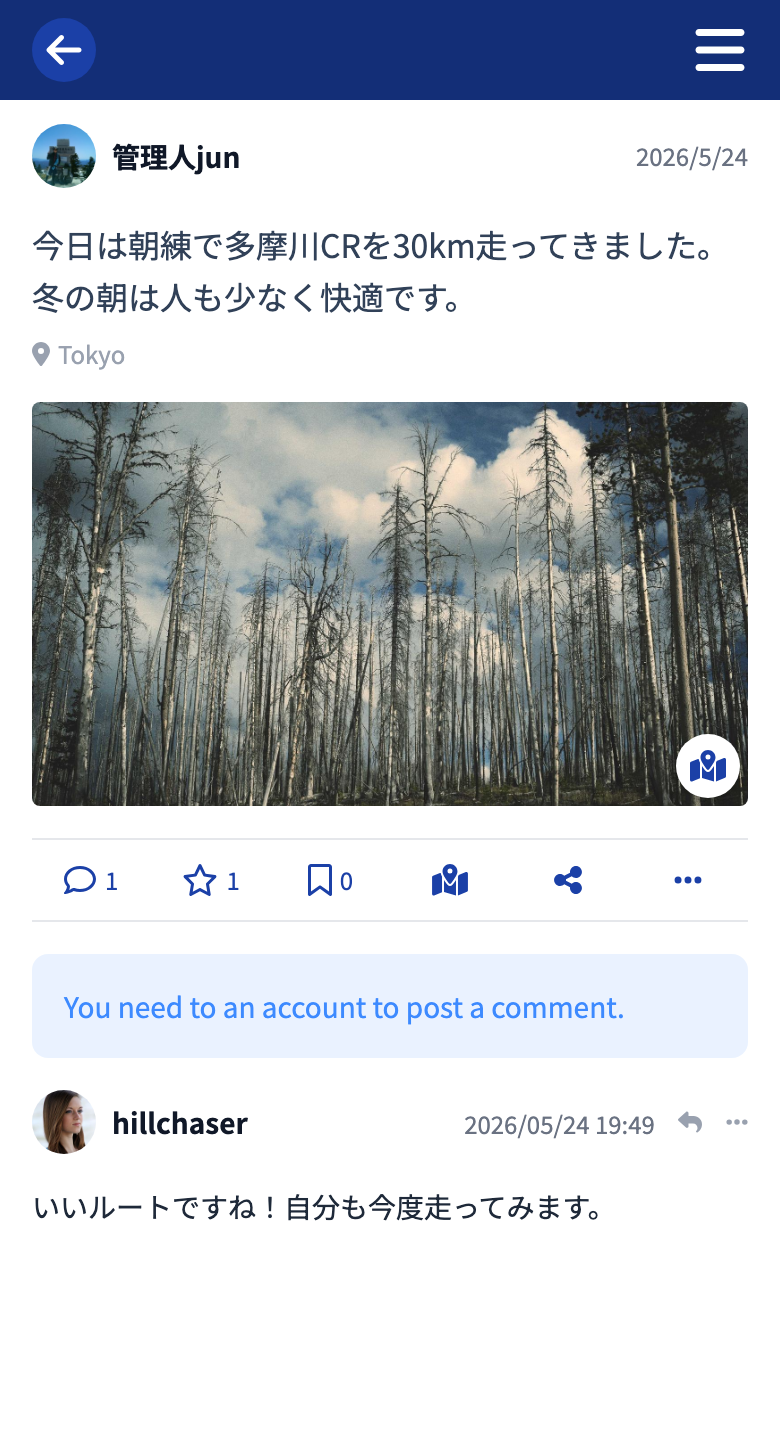
A photo with a map link gets a map mark at the bottom right on the published screen. When a reader taps the photo, the map opens too, instantly conveying “where is this photo?”
Adding Geographic Information
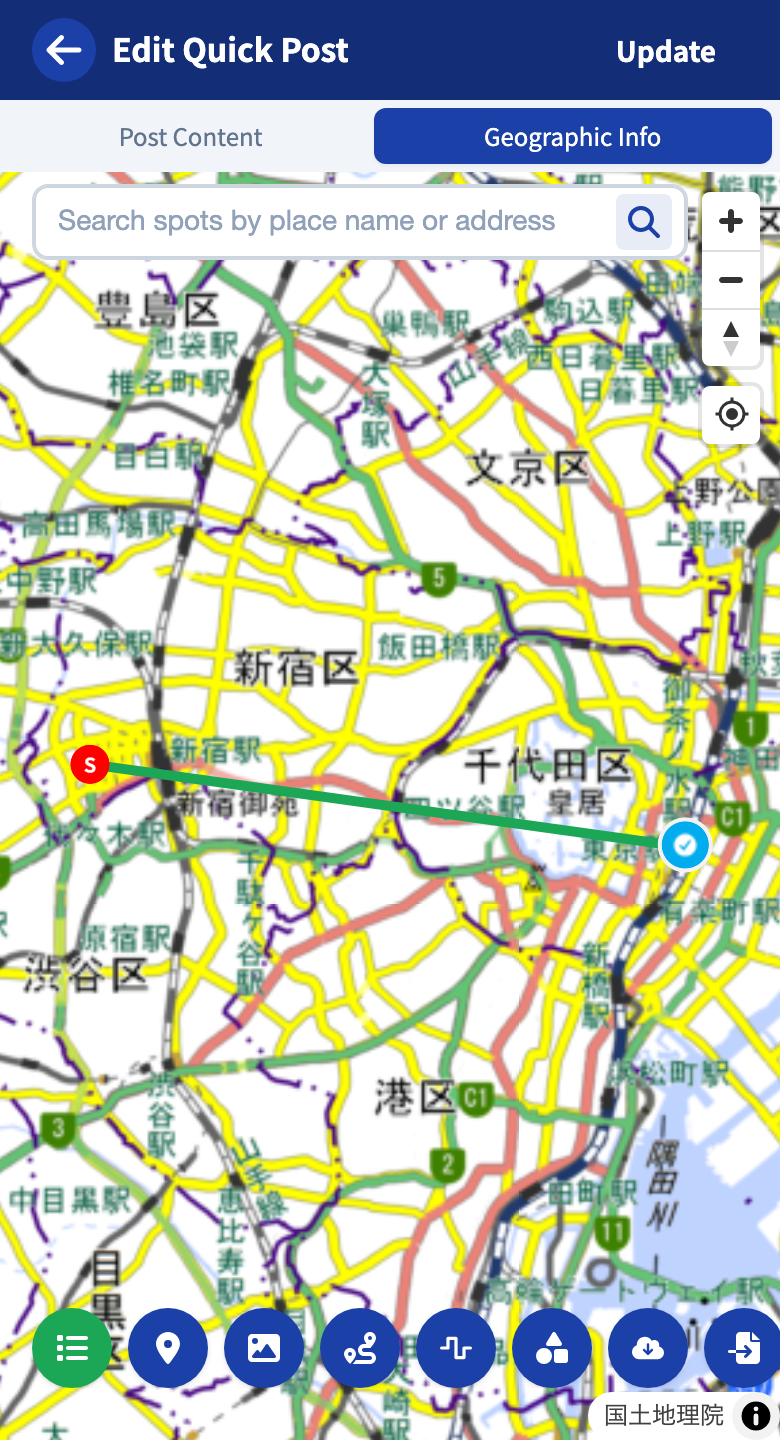
When you set a spot, your post is tied to that place and can also be found via map search. You cannot design complex routes like in a touring post.
Tags and Publishing
Tags
Adding tags makes your post easier to find from tag pages and search.
- Up to 10 per post
- Up to 15 characters per tag
Enter a tag name and “Add” to register it, and tap a tag to remove it.
Publishing
Tap “Update” to publish. You can also save it as a draft. You can open published quick posts from “Created content” on My Page, and drafts from “Drafts.”
The thumbnail is chosen automatically from the images included in the post. There is no manual setting.
After Publishing: Share with a Location Image
If you register an image to a spot in the geographic information, you can generate and share a location image after publishing. Start from the photo icon on the post card. For details, see Generating a location image.
Tutorials
- Quick Start
Getting started with RouteShare
- Explore
List, map, and article views
- Account
Sign up, login, profile, settings
- Create
Quick posts, touring posts, gadget articles
- Planning
Create, share, and copy touring plans
- Tracking
Recording and editing tracks
- Teams
Create and join teams, team posts and chat
- Actions
Likes, comments, follows
- Manage
Managing your posts