Browsing from the List
On the “Search” page, you can browse quick posts / touring posts / gadget info posted by other users, as well as users, from a list. Tap “Search” in the global footer at the bottom of the screen to open it.
Switching Between Four Tabs
Switch the target with the tabs at the top of the page.
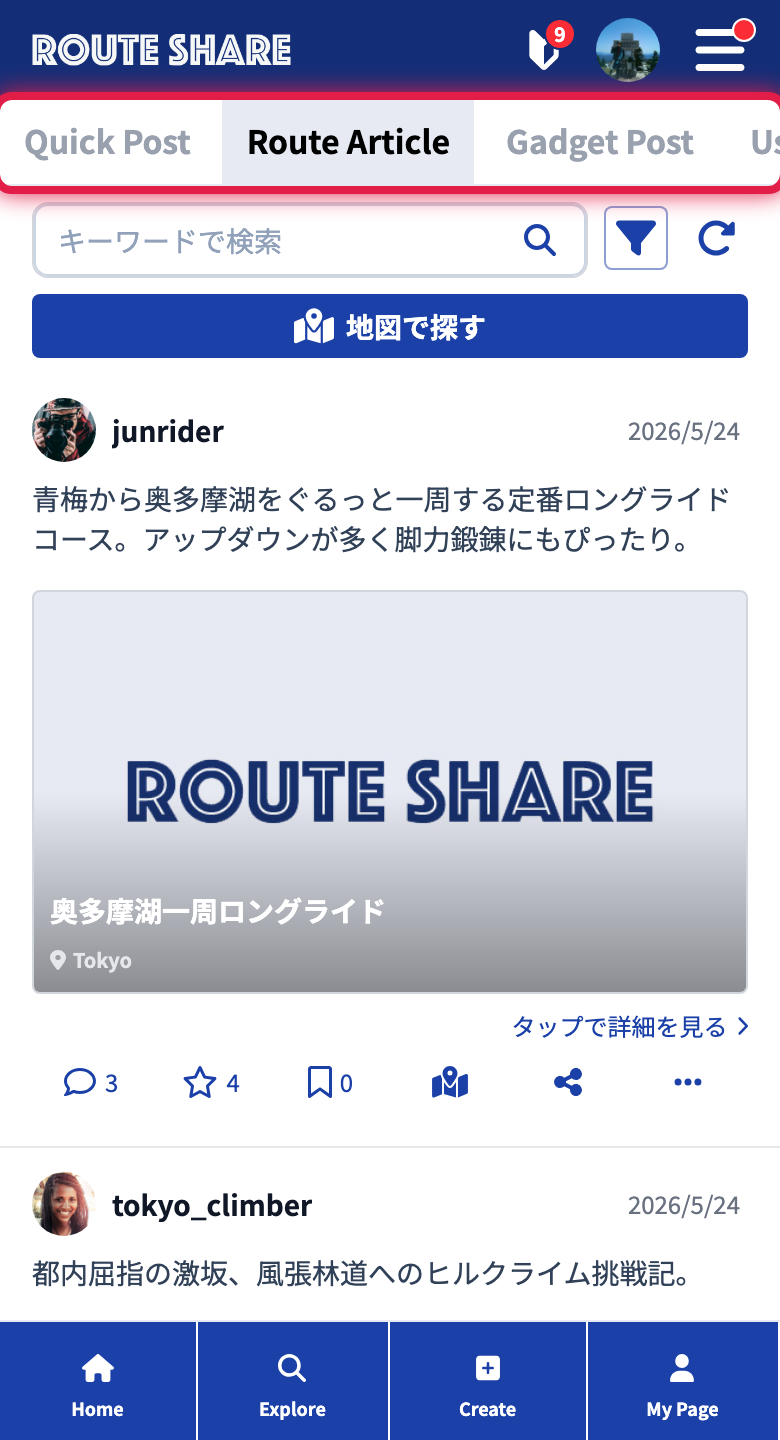
- Quick Post (default)
- Touring Post
- Gadget Info
- Users
Each tab keeps its own independent search conditions and sort order.
The Search Bar and Buttons
The search bar sits just below the tabs, with several buttons on the right.
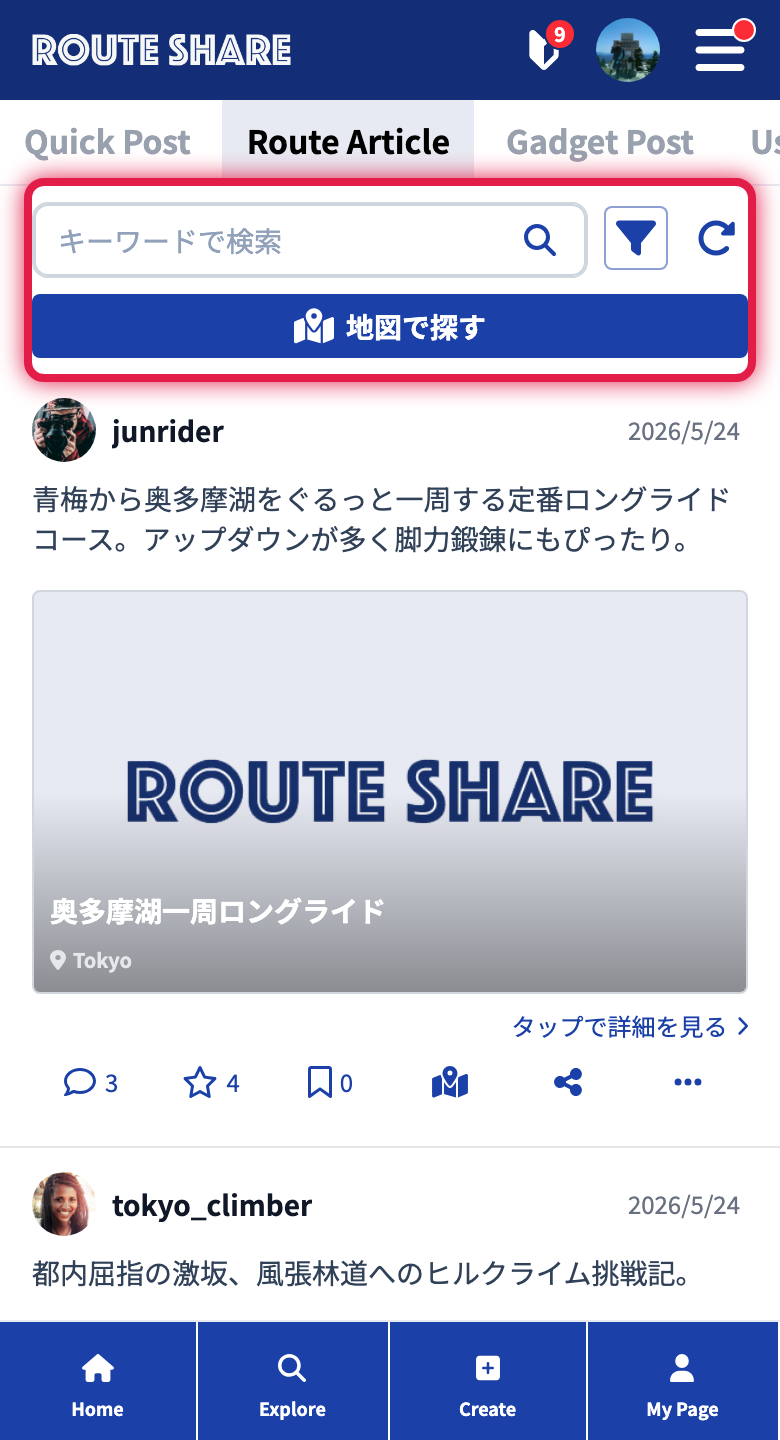
The search bar contains the following elements (the buttons shown vary by tab).
| Element | Behavior |
|---|---|
| Keyword field + | Enter a keyword and tap the magnifier, or press Enter, to search |
| Open the detailed search conditions | |
| Reload the search results | |
| Search on map | Switch to Browsing from the map (shown only on the Quick Post and Touring Post tabs) |
Detailed Search Conditions
Tapping the filter button opens the “Search conditions” window.
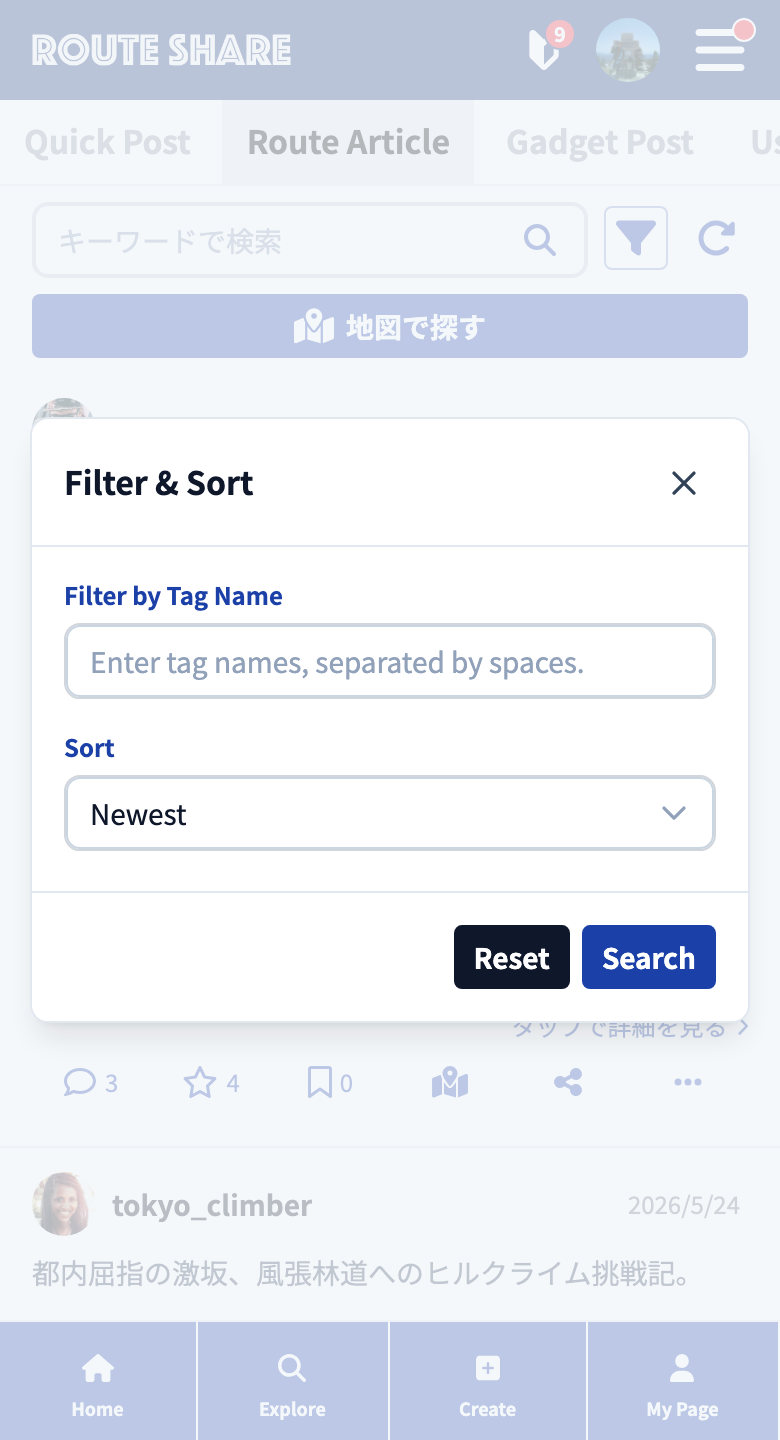
The items you can set vary by tab.
| Tab | Items you can set |
|---|---|
| Quick Post | Tags |
| Touring Post | Tags / sort order |
| Gadget Info | Sort order / gadget category |
| Users | Sort order |
Use “Reset conditions” at the bottom to clear, and “Search” to apply.
Tag Search
In the “Tags” field, you can narrow posts down by tag name. It is available for quick posts and touring posts, letting you search only for posts with a specific tag. Since tags can be added freely on the posting side, just entering a theme you’re interested in (for example, “road bike” or “camping touring”) finds them all together.
The Gadget Info and Users tabs do not have a tag field. Gadget info is narrowed down by gadget category.
How It Looks When Detailed Search Is Active
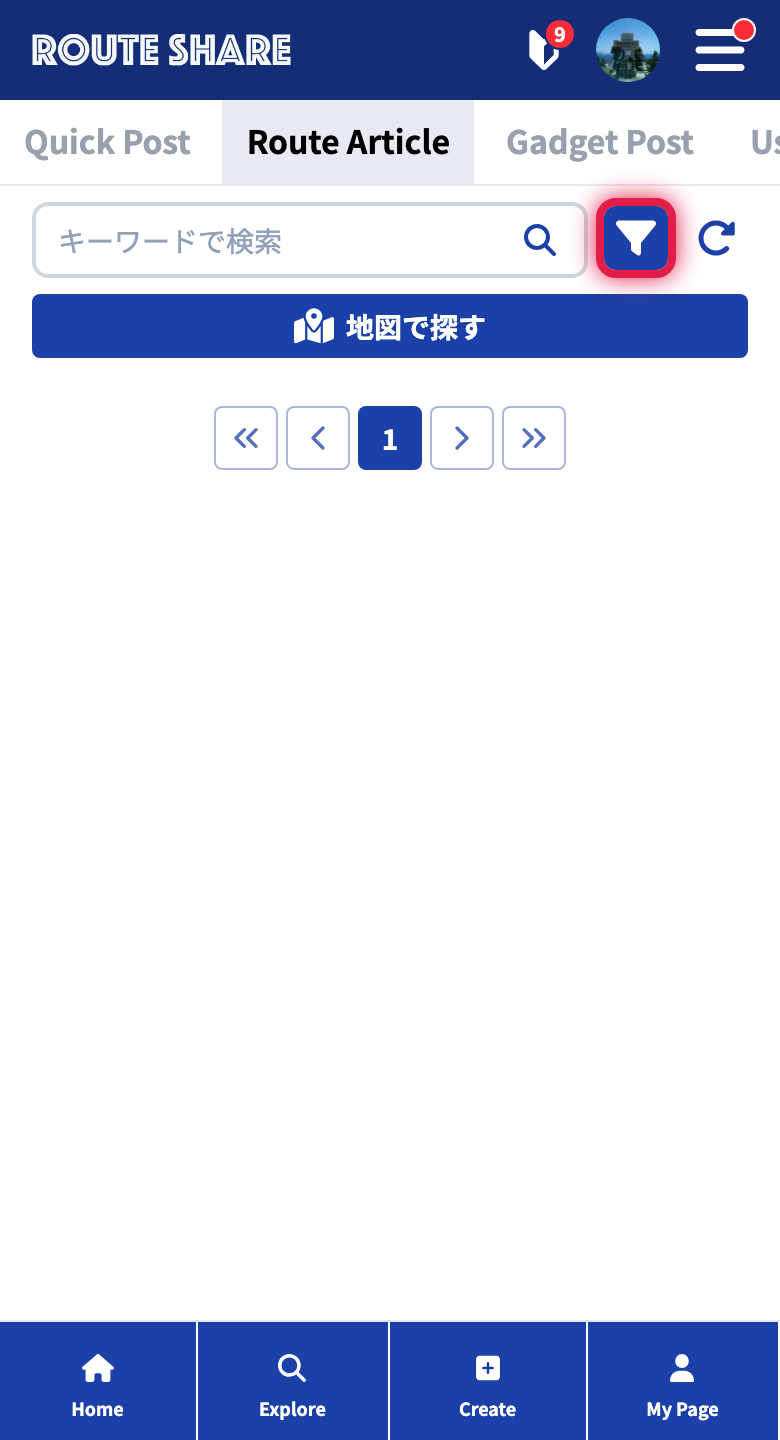
When you have set a filter such as tags or sort order, the filter icon switches to a filled style, so you can see at a glance that a filter is currently in effect.
Sort Order Options
The sort orders available for each tab are as follows.
Touring Post
- Newest / oldest
- Most Nice Route
- Most comments
- Most copied
Gadget Info
- Newest / oldest
- Most Nice Gadget
- Most comments
Users
- Newest / oldest registration
- Most touring post posts
- Most gadget posts
- Most Nice Route
- Most copied
Quick posts are always shown in newest order.
How to Read the Results
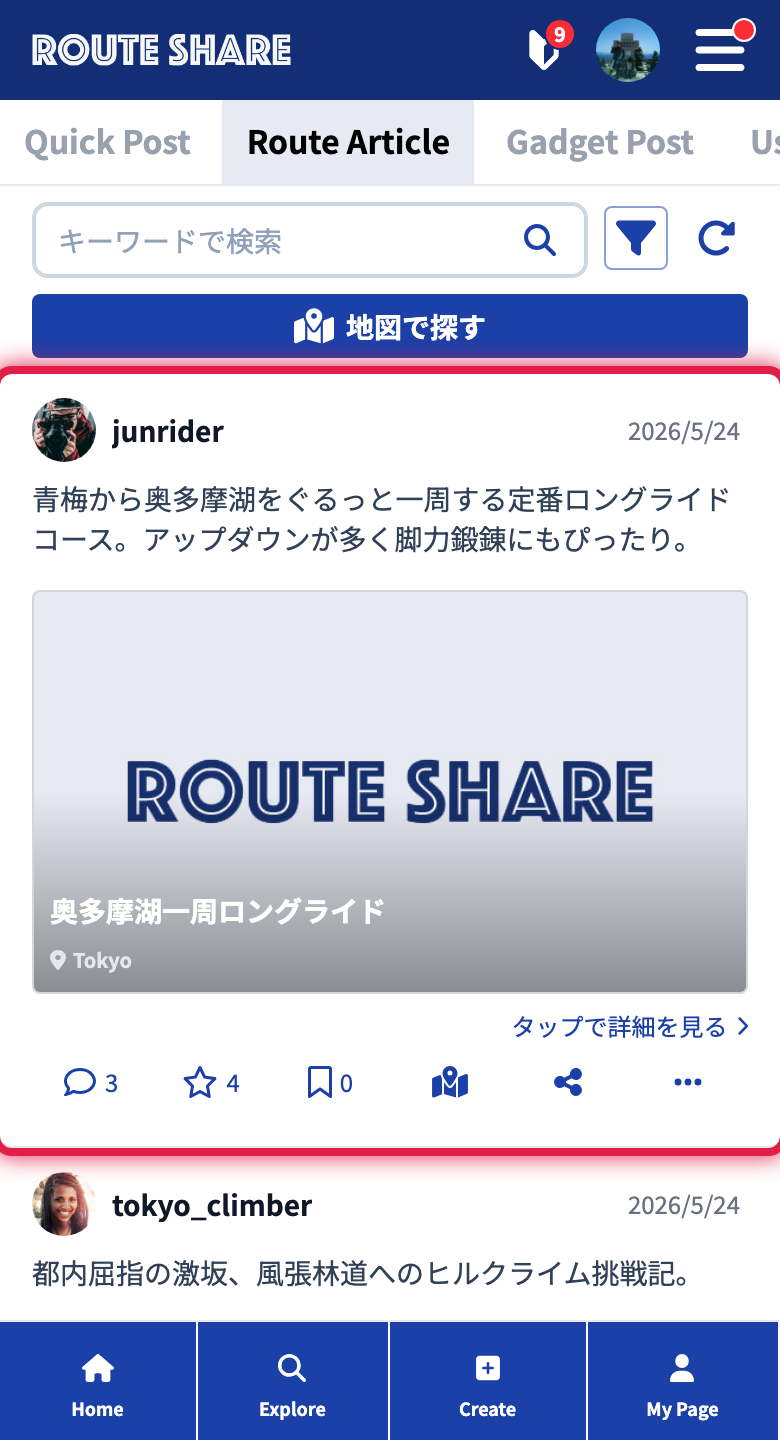
Search results are shown as cards.
- Tap a card to open its detail page.
- Move to the next page with pagination.
Opening the Mini Map with the Map Icon
Tapping the map icon on a card slides up a mini map at the bottom of the screen, letting you preview the spots and lines tied to that post without opening it. Since gadget info and user cards have no geographic information, the icon is not shown for them.
Tutorials
- Quick Start
Getting started with RouteShare
- Explore
List, map, and article views
- Account
Sign up, login, profile, settings
- Create
Quick posts, touring posts, gadget articles
- Planning
Create, share, and copy touring plans
- Tracking
Recording and editing tracks
- Achievements
Earning and viewing exploration achievements
- Teams
Create and join teams, team posts and chat
- Actions
Likes, comments, follows
- Manage
Managing your posts