Copying to Other Posts
Touring plans and quick or touring posts can copy their map content to each other. A route or set of spots you drew once can be reused in another form.
Copy From a Plan to Another Form
From the copy action on a plan’s list card or editor, open “Copy geographic info.” Choose the layers, spots, and lines you want to copy, then choose where to copy them.
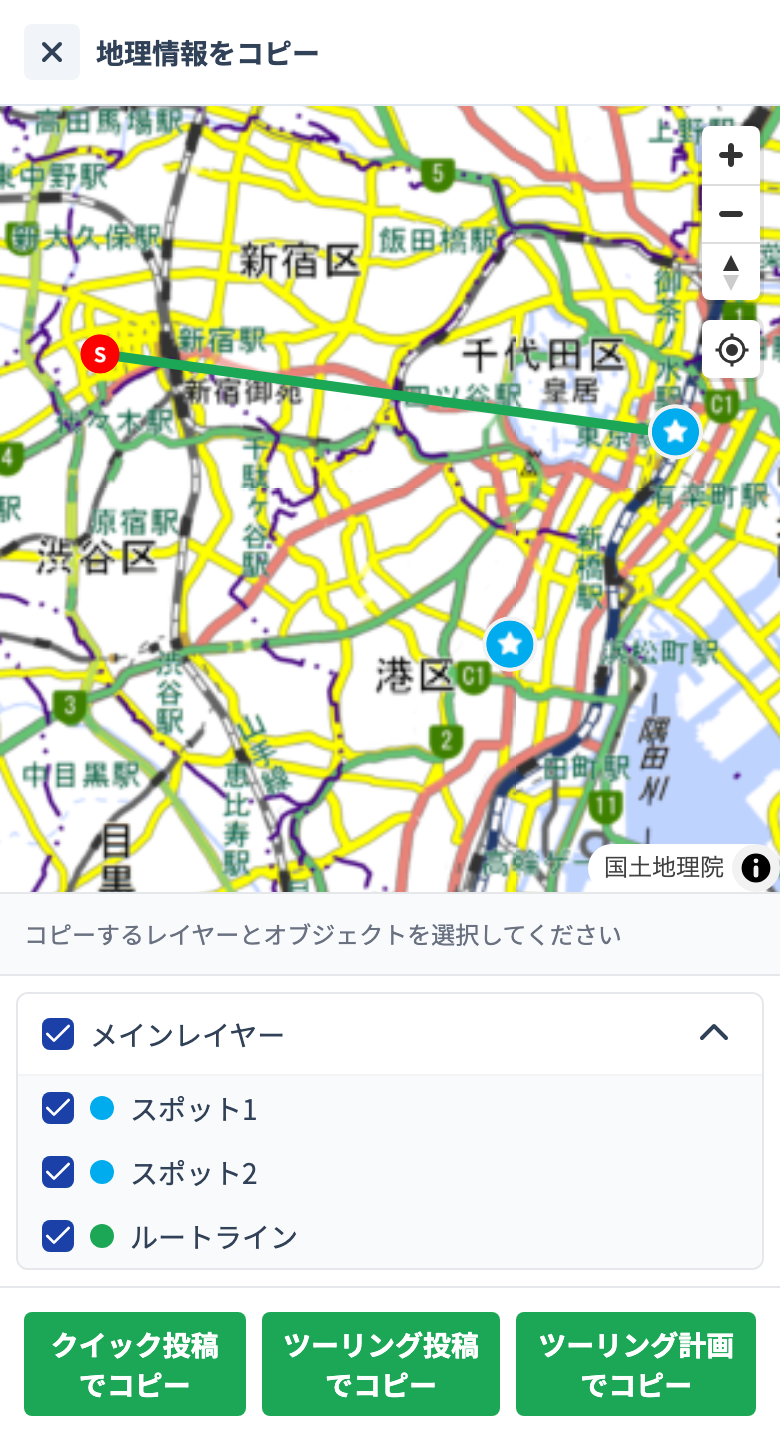
The copy screen and its buttons are currently shown in Japanese. The three copy buttons, from left to right, are the options below.
| Copy target | Result |
|---|---|
| Copy as Quick Post | Creates a quick post with the selected map content |
| Copy as Touring Post | Creates a touring post draft with the selected map content |
| Copy as Touring Plan | Duplicates it as another touring plan |
Copy From a Post to a Plan
Conversely, from “Copy geographic info” on a quick post or touring post you can also choose to copy as a touring plan. Use the route of a published post as a starting point to quickly build your next touring plan.
What Gets Carried Over
Only the map content is copied. Images attached to spots are not carried over. The title, memo, and body text are not carried over either, so you enter them anew after copying.
Tutorials
- Quick Start
Getting started with RouteShare
- Explore
List, map, and article views
- Account
Sign up, login, profile, settings
- Create
Quick posts, touring posts, gadget articles
- Planning
Create, share, and copy touring plans
- Tracking
Recording and editing tracks
- Teams
Create and join teams, team posts and chat
- Actions
Likes, comments, follows
- Manage
Managing your posts