Viewing a Touring Plan
The viewer for a touring plan shows the plan on a full-screen map for a close look. You open it from the map icon on the list or from a share link.
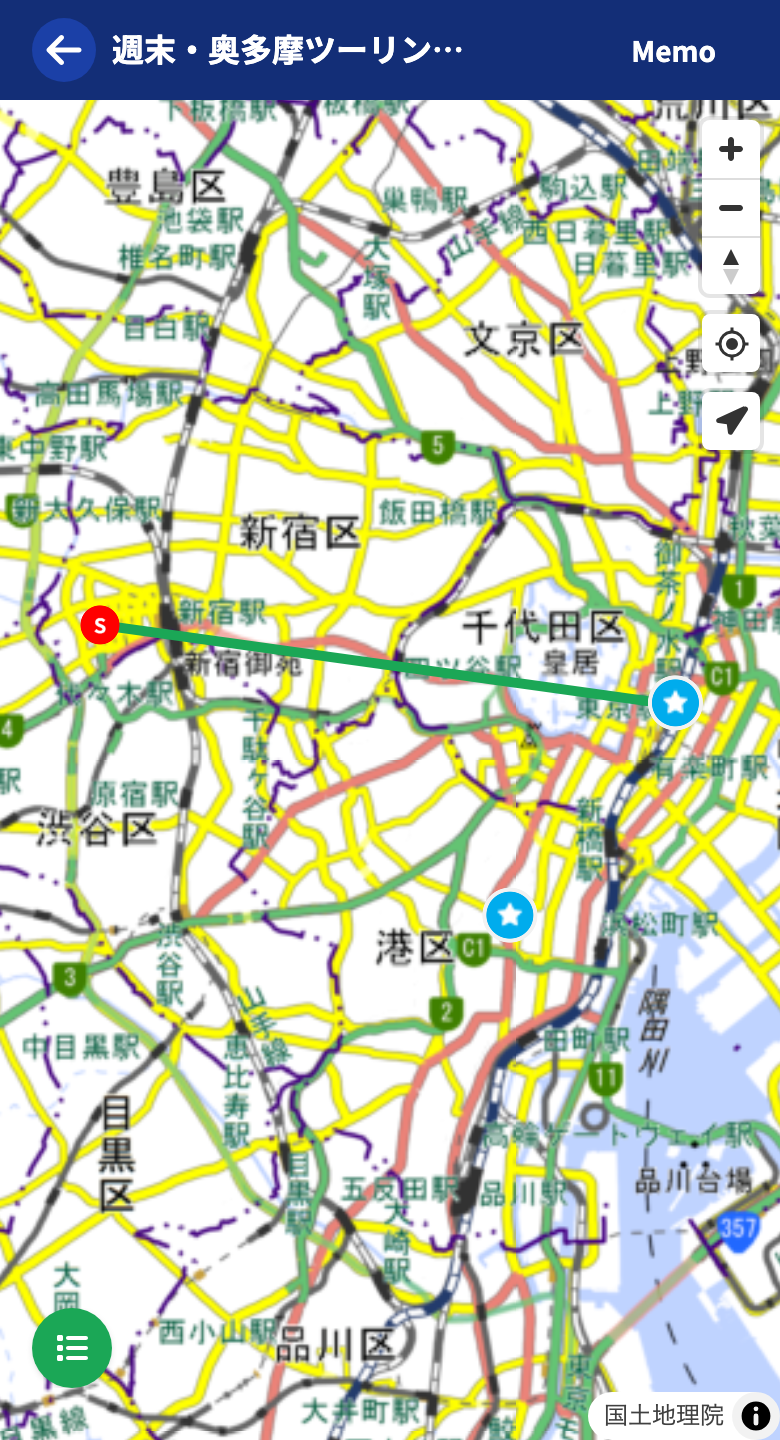
Check It on the Full-Screen Map
In the viewer the map fills the screen, so you can see your planned routes and spots at a large size. With the current-location display, you can ride while comparing where you are with the plan.
View the Memo
Tap “Memo” at the top right to open the plan’s title and memo full screen. You can check the meeting point, stops, and cautions all together.

Viewing a Shared Plan
Anyone who receives the share link can open this viewer, even without logging in. A private plan is visible only to its creator and is not shown to people without the link.
Reporting a Problem
If there is a problem with a shared plan, you can let the operators know from “Report” at the top right. The report button appears when you are viewing a plan created by someone other than yourself.
On the report screen, choose the reason that applies and submit. You can choose from reasons such as advertising or spam, aggressive content, posting of personal information, guidance toward danger, and display problems.
Tutorials
- Quick Start
Getting started with RouteShare
- Explore
List, map, and article views
- Account
Sign up, login, profile, settings
- Create
Quick posts, touring posts, gadget articles
- Planning
Create, share, and copy touring plans
- Tracking
Recording and editing tracks
- Teams
Create and join teams, team posts and chat
- Actions
Likes, comments, follows
- Manage
Managing your posts