How to Read Posts
This page explains how to read other users’ quick posts / touring posts / gadget info and what you can do with them. It covers the common elements across the three post types and the parts that differ by type (especially the way the map is shown and the action panel).
Quick Post
A quick post is a short post, and the content of the card is shown directly at full size. In addition to the body, you can check detailed actions and comments.
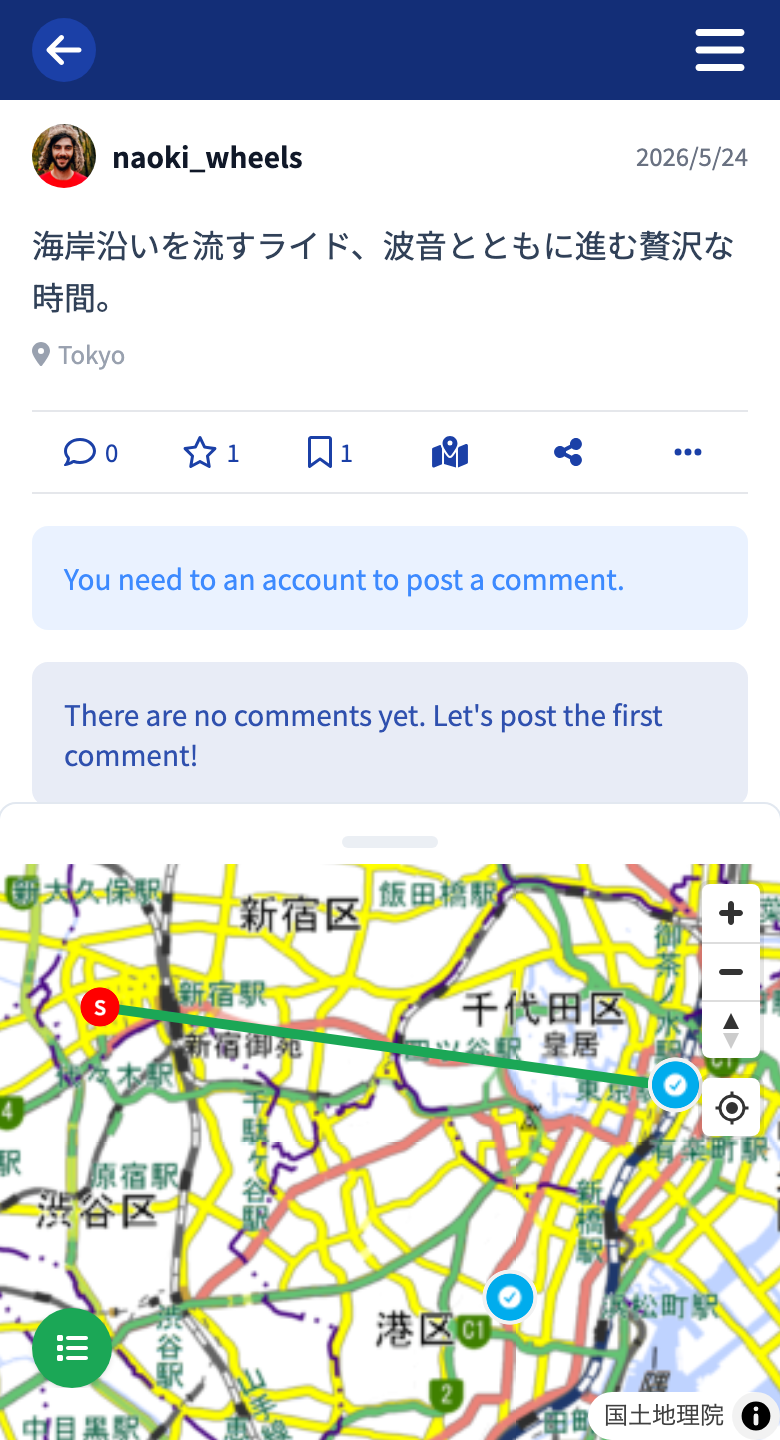
- Photo slider (multiple images)
- Body / tags / posted date
- Geographic information
- Action buttons
Showing the Map — the Mini Map
For a quick post with geographic information, opening the detail page automatically shows a mini map, a small map area at the bottom of the screen.
- You can open and close it anytime with the map button .
- For a quick post without geographic information, the map button is disabled.
Actions
A quick post’s actions are an icon bar, arranged in the following order.
| Icon | Action |
|---|---|
| Comment | |
| Like | |
| Save | |
| Map (open/close the mini map; unavailable when there is no geographic information) | |
| Share to social media | |
| More (Copy geographic information / report, etc.) |
Touring Post
A touring post is rich in content, so in addition to a vertical layout of header → body → action panel, a map drawer is always present at the bottom of the screen.
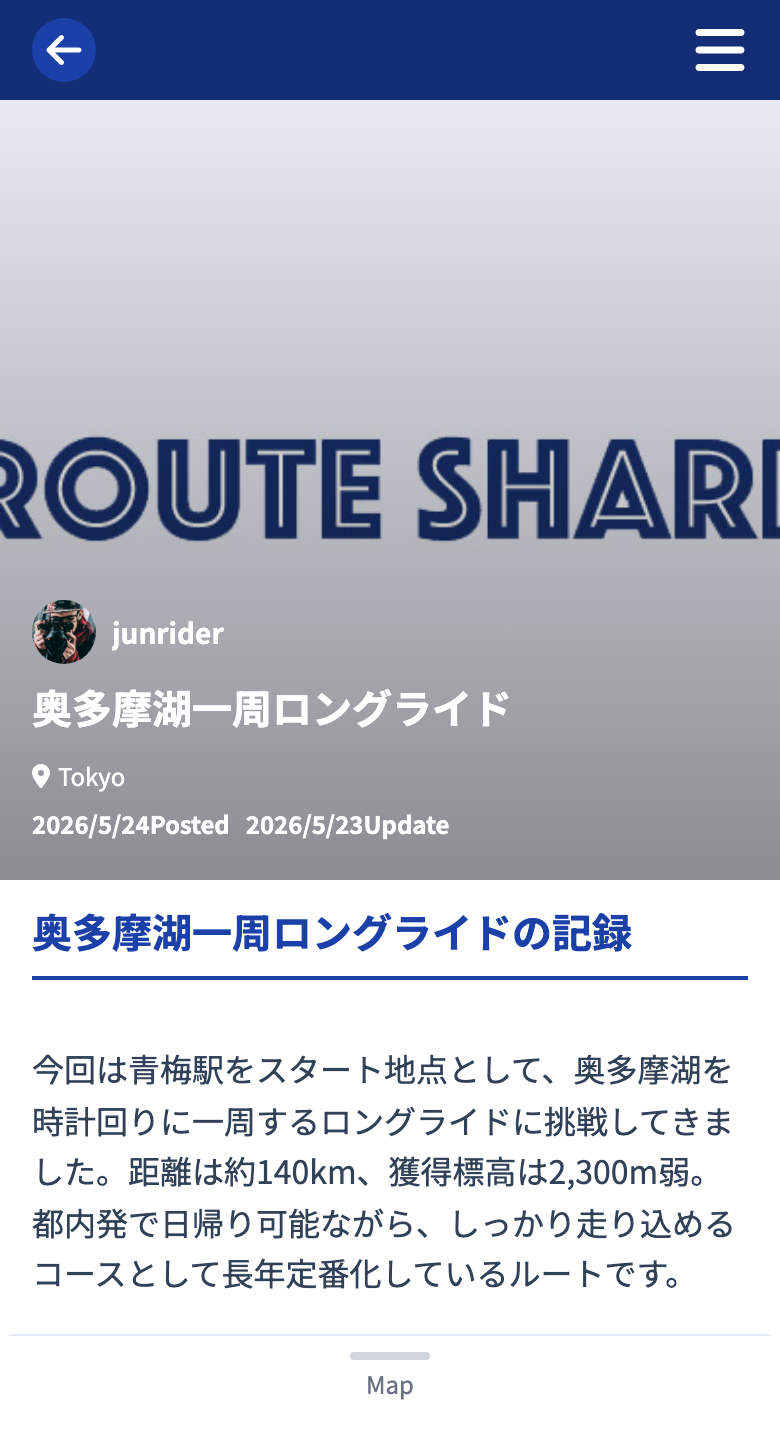
Showing the Map — the Drawer (Always Visible)
Unlike a quick post’s mini map, a touring post always shows a map drawer. While you read the article, it never fully closes; a minimal handle always remains at the bottom edge of the screen.
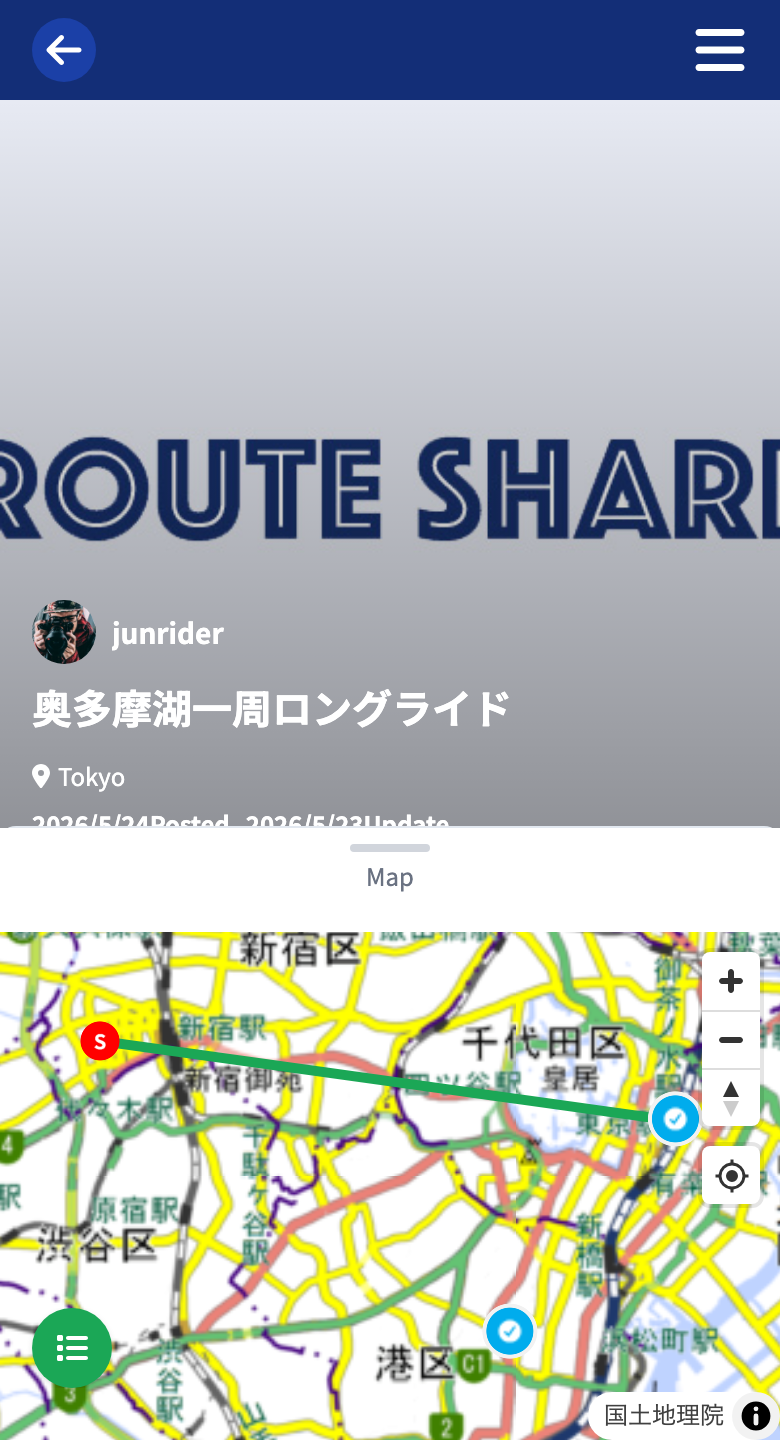
Drag the handle (the horizontal bar) at the top of the drawer to switch its height across three levels.
| Mode | Use |
|---|---|
| Minimum (lowest) | When you want to focus on reading the body. Only the handle of the map remains |
| Middle (default) | Check the body and map half and half |
| Maximum | Maximize the map (about 85% of the screen) to look closely at the whole route or individual spots |
Tapping a map link in the body automatically opens the drawer to middle and shows a callout for the corresponding spot on the map.
Actions (4 Main Buttons)
A touring post’s actions are four large buttons arranged in a grid (two columns on a computer, one column on a phone).
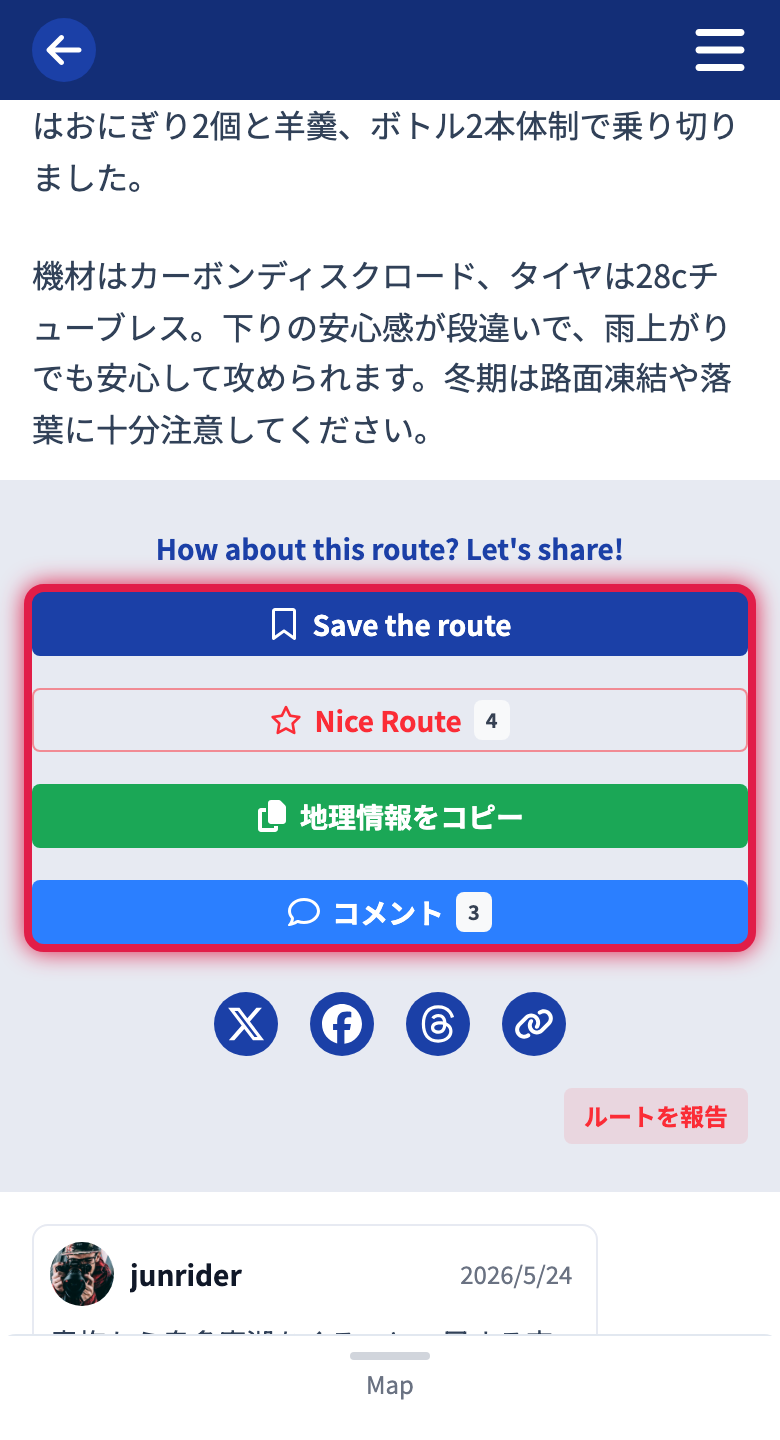
| Button | Behavior |
|---|---|
| Save touring post | Save to My Page so you can read it again later. Tap again to remove “saved” |
| Nice Route | A “like” for the post. Also shows how many have tapped it |
| Copy geographic information | Copy this route’s map information as a template for your own new touring post |
| Comment | Scroll to the comment section (with a count badge) |
Below them are four social share buttons, and further down a Report touring post button.
Gadget Info
Gadget info is a post type for gear reviews and product introductions, and it has no geographic information. For that reason, neither a map drawer nor a mini map is shown.
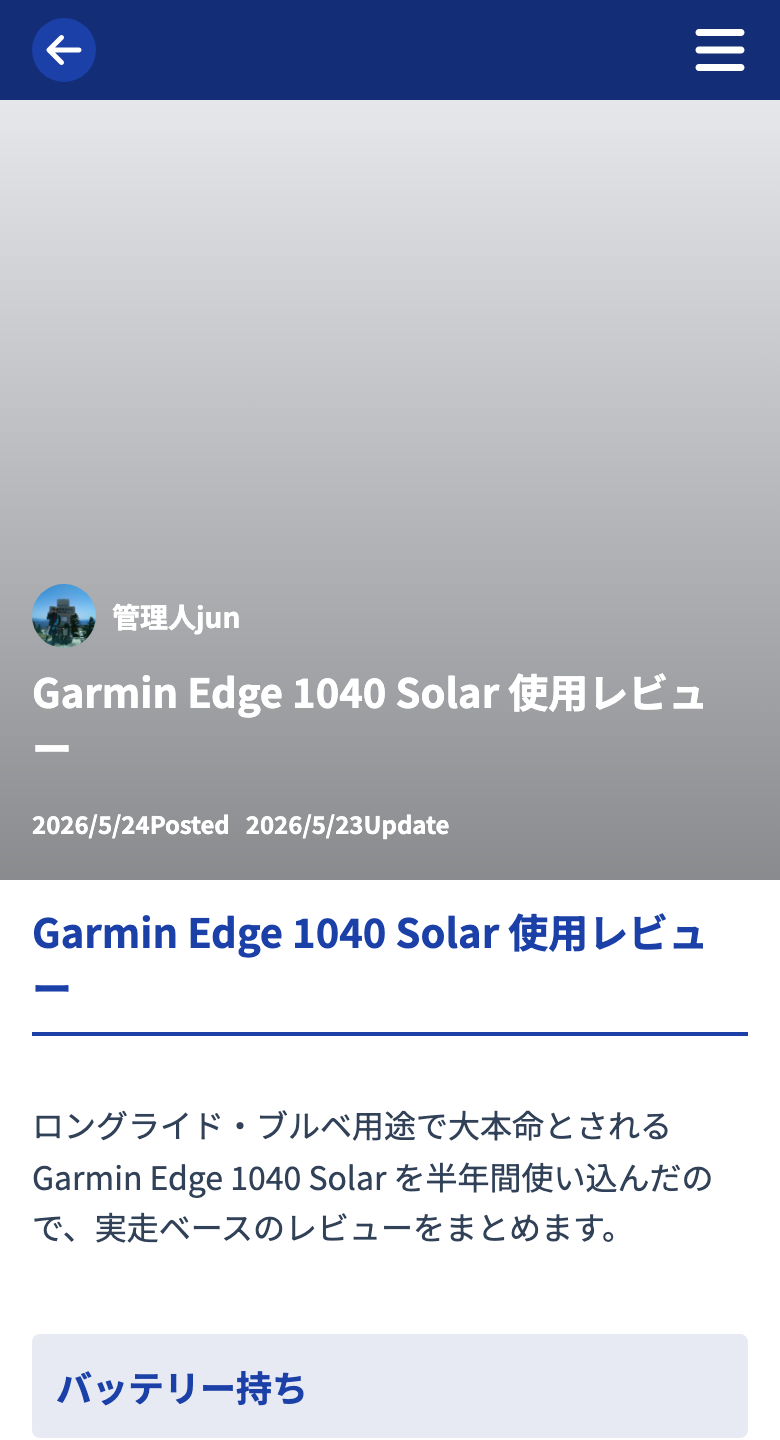
Elements you can check:
- Main image + author / title / date / gadget category (a category in the place of tags)
- Rich text body
- Action panel (3 main buttons + 4 share buttons + report)
- The author’s other gadget info (horizontal-scroll carousel)
- Comment section
Actions (3 Main Buttons)
Since gadget info has no geographic information, unlike a route there is no “Copy geographic information.”
| Button | Behavior |
|---|---|
| Save gadget info | Save it so you can read it again later |
| Nice Gadget | A “like” for the post |
| Comment | Scroll to the comment section |
Below them are four social share buttons, and further down a Report gadget info button.
Comments
From the comment section at the bottom of the detail page, you can send impressions and questions. This is common to all three post types.
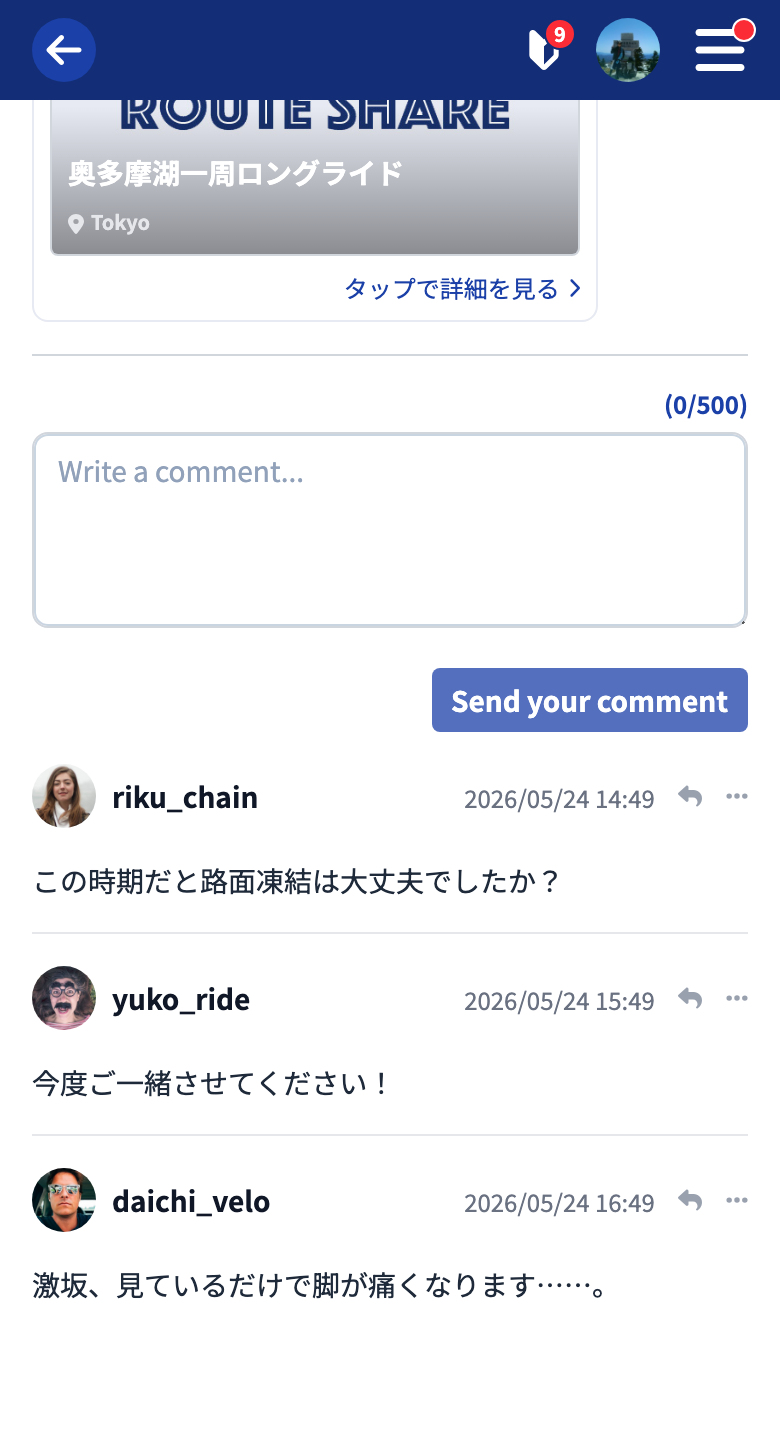
- Write a comment in the input field and send it.
- You can reply to existing comments.
- You can edit and delete your own comments.
Sharing
For touring posts and gadget info, four round buttons are lined up at the end of the action panel below the body. Tapping one shares directly to that service (the service’s posting screen opens).
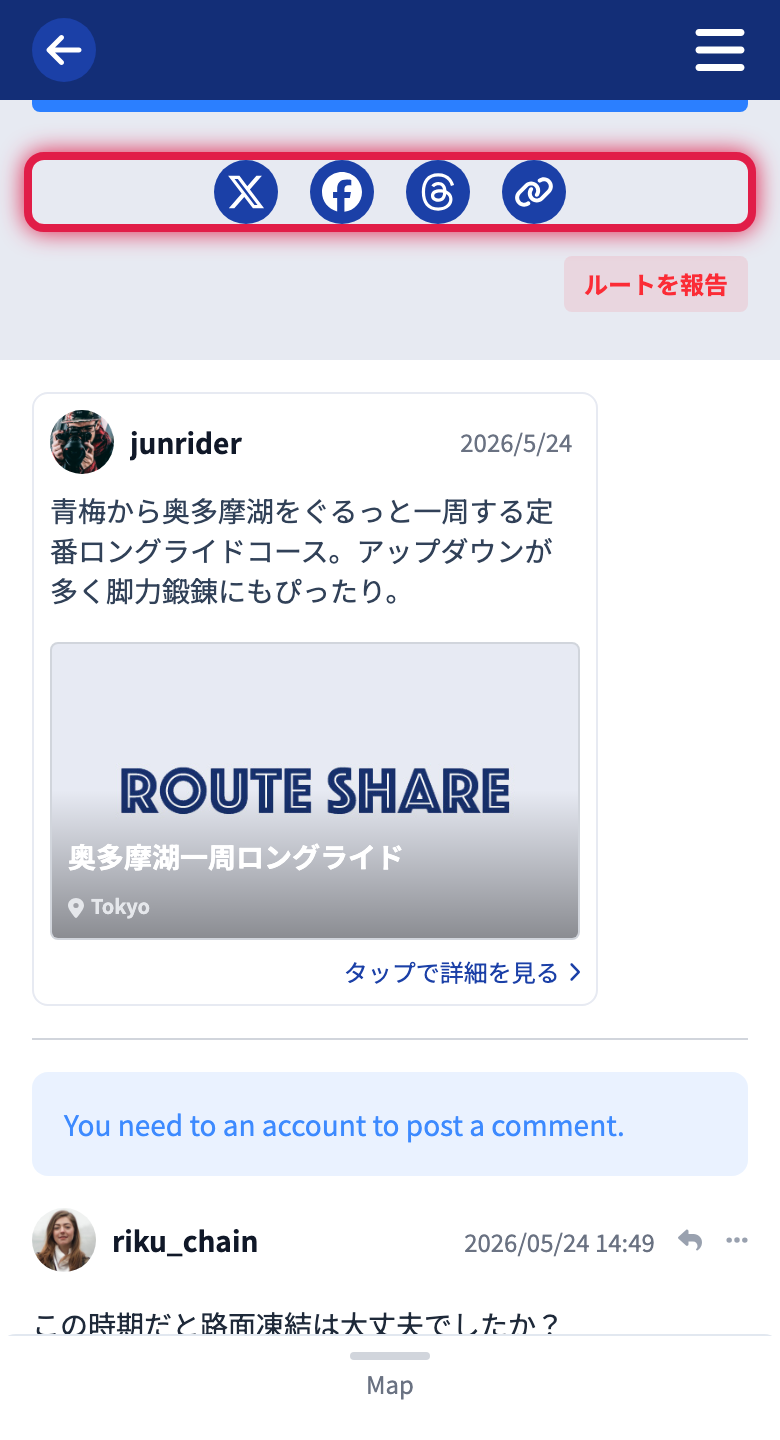
- X (formerly Twitter)
- Threads
- Copy link
Reporting
All three post types have a “Report touring post / Report quick post / Report gadget info” button, so you can report an inappropriate post to the operators.
The Map Icon on List Pages
The map icon on each card in the search results behaves differently depending on the page you are currently on.
- Browsing from the list: Tapping it slides up a mini map at the bottom of the screen to preview that post’s geographic information.
- Browsing from the map: Tapping it focuses the map on that post’s spots and lines.
The icon is the same in both, but remembering the difference makes exploring much smoother.
Tutorials
- Quick Start
Getting started with RouteShare
- Explore
List, map, and article views
- Account
Sign up, login, profile, settings
- Create
Quick posts, touring posts, gadget articles
- Planning
Create, share, and copy touring plans
- Tracking
Recording and editing tracks
- Achievements
Earning and viewing exploration achievements
- Teams
Create and join teams, team posts and chat
- Actions
Likes, comments, follows
- Manage
Managing your posts